Basic vs Smart Carriers for Hard Drives Explained
Compare design, monitoring features, compatibility, and maintenance before choosing a drive carrier
-
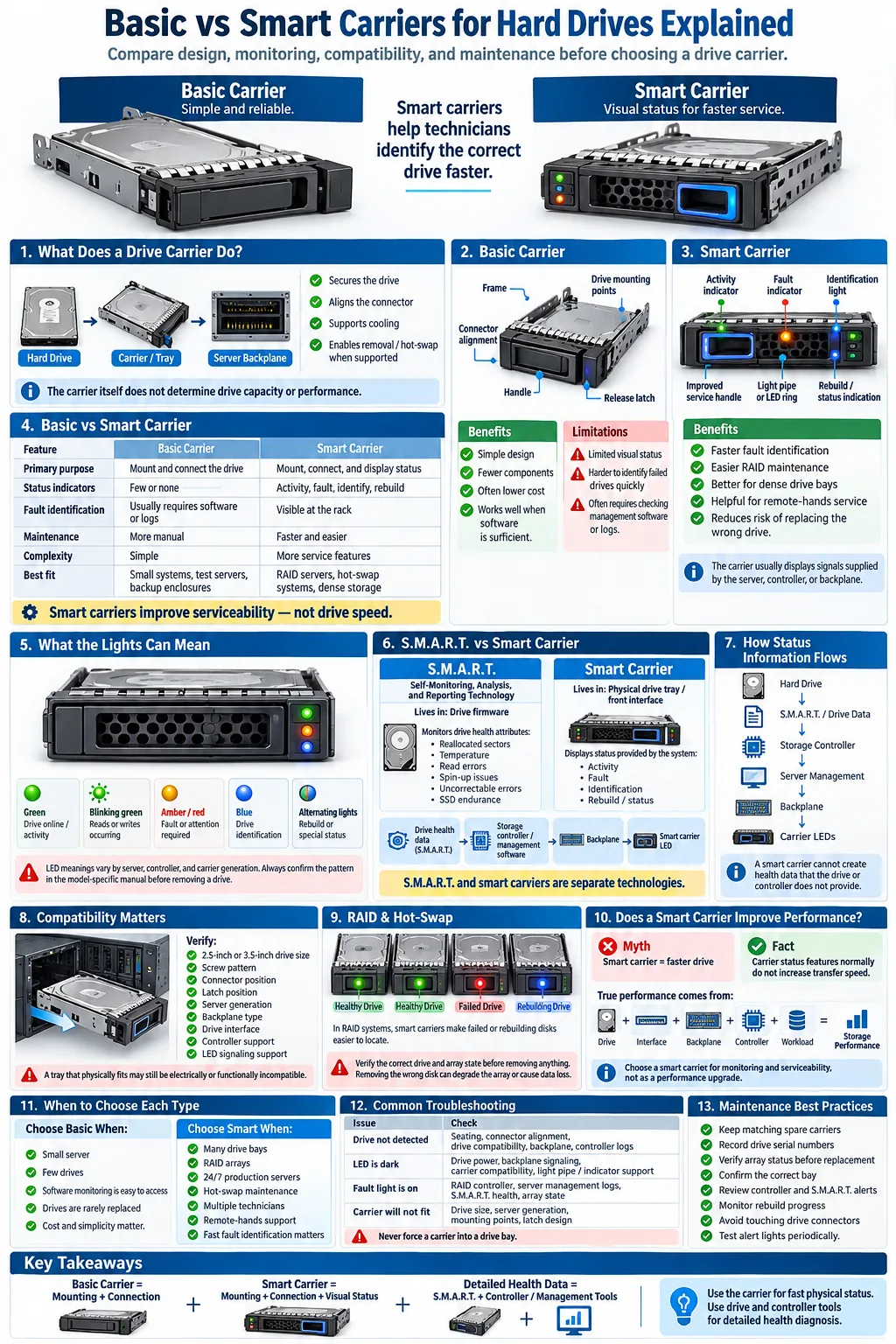
Smart carriers use LED rings and handle cutouts to show real-time drive status and simplify maintenance.
-
Basic carriers use older, simpler designs with few or no status indicators, making quick diagnostics harder.
-
S.M.A.R.T. data enables proactive drive health monitoring and is often easier to use with smart carriers.
A drive carrier, also called a drive caddy or tray, secures a hard drive inside a server or storage enclosure. The main choice is usually between a basic carrier, which provides physical mounting and connection, and a smart carrier, which adds visual status feedback and sometimes improved service features. Both can hold SATA drives and support hot-swapping when matched with compatible hardware. The difference matters most in a busy server room, where a technician needs to identify a failed disk quickly. Understanding the carrier's design, LED signals, and relationship with S.M.A.R.T. data helps you choose the right option for your system.
What Is a Basic Carrier for Hard Drives?
Design and Physical Features
A basic carrier is a tray that holds a hard drive in the correct position and connects it to the server's backplane. It commonly uses a metal or molded plastic frame, mounting holes for 2.5 inch or 3.5 inch drives, a release latch, and a simple front handle. The carrier usually contains no diagnostic electronics. Its primary job is to keep the drive stable, aligned, cooled, and removable.
Some basic trays include a small activity opening or a single light pipe that passes a signal from the backplane. That does not necessarily make the tray a smart carrier. The important distinction is whether the carrier offers dedicated status feedback and service features beyond mechanical mounting.
Typical Use Cases and Compatibility
Basic carriers are common in older servers, entry-level storage systems, and environments where drives are replaced infrequently. They may be used in HPE Proliant DL20 Gen10+ systems only when the tray's dimensions, connector position, and backplane design match the server. A carrier made for one HPE generation is not automatically compatible with another.
They can support SATA hard drives and solid-state drives, but you should confirm the drive size, screw pattern, connector location, and firmware expectations before installation.
Limitations Compared to Smart Carriers
The main limitation is limited visibility. Without dedicated status feedback, you may need to open server management software or inspect logs to identify a failed or rebuilding disk. A basic carrier also gives technicians fewer visual clues during replacement, which can increase the chance of removing the wrong drive in a crowded enclosure.
What Is a Smart Carrier for Hard Drives?
Distinctive Design Elements
A smart carrier combines the normal tray structure with additional status and service features. Its drive handle design may include a larger cutout, a translucent ring, or a light pipe that makes the carrier easier to identify from the front of a server. Some models also use improved latches, labels, alignment guides, or a circuit board that communicates with the enclosure.
The carrier itself does not usually perform all drive diagnostics. Instead, it presents signals supplied by the server backplane, storage controller, or management system. This distinction is important because a smart carrier cannot compensate for an incompatible backplane or a controller that does not support the relevant signals.
Integrated LED Indicators and Their Meanings
Drive LED indicators can show activity, drive presence, fault status, or rebuild progress. A steady green light commonly indicates that the drive is online, while a blinking light may indicate reads and writes. Amber or red often signals a fault, a failed disk, or a condition requiring attention. Blue or alternating patterns may identify a selected drive or indicate a rebuild, depending on the manufacturer.
Always check the server manual because color codes differ between HPE systems, storage controllers, and carrier generations. Treat the light as a useful clue, not as a complete diagnosis.
Advantages in Drive Monitoring and Maintenance
Smart carriers improve maintenance by allowing a technician to locate the correct disk without relying only on serial numbers or software screens. In a RAID enclosure, that faster identification can reduce replacement mistakes and shorten service time. The visual feedback is especially helpful when many drives are installed close together or when remote hands are performing a procedure.
Understanding S.M.A.R.T. Technology in Hard Drives
What Is S.M.A.R.T.?
S.M.A.R.T., or Self-Monitoring, Analysis, and Reporting Technology, is a feature built into many hard drives and solid-state drives. It records internal measurements such as reallocated sectors, temperature, spin-up problems, uncorrectable errors, and remaining endurance. The drive stores these values as attributes that operating systems, controllers, and diagnostic utilities can read.
S.M.A.R.T. is not the same thing as a smart carrier. S.M.A.R.T. lives in the drive's firmware, while a smart carrier is a physical tray and status interface. The two can work together, but they are separate technologies.
How S.M.A.R.T. Data Improves Drive Reliability
S.M.A.R.T. data supports self-monitoring and early warning. For example, a rising count of reallocated sectors or repeated read errors can indicate that a drive should be backed up and replaced. Monitoring tools can poll these attributes and create alerts before a complete failure occurs. However, S.M.A.R.T. cannot predict every failure, and a healthy report is not a guarantee that the drive will continue working.
Interaction Between Smart Carriers and S.M.A.R.T.
A smart carrier usually displays the result of a broader monitoring process rather than reading every S.M.A.R.T. attribute itself. The storage controller or server management software may evaluate drive data, detect an error, and then activate the carrier's fault light. This gives you a fast visual warning while detailed information remains available in management logs.
For reliable alerts, the drive, backplane, controller, operating system, and carrier must all support the required communication path. A smart carrier may still show activity even when detailed S.M.A.R.T. data is unavailable.
Comparing Basic and Smart Carriers: Key Differences
Physical and Functional Differences
The basic difference is that a basic carrier mainly mounts the drive, while a smart carrier adds status communication and a more visible front interface. Smart models may include handle cutouts, light pipes, LED rings, and small electronic components. Basic models generally have fewer parts and may cost less, but they provide less information at the rack.
Neither carrier automatically increases drive speed. Actual data transfer rates depend on the drive interface, controller, backplane, link speed, workload, and protocol. A smart carrier should not be purchased as a performance upgrade unless the manufacturer specifically states that it changes the supported interface.
Impact on Drive Health Monitoring
Smart carriers make drive health monitoring more practical because they provide immediate visual alerts for faults, activity, or rebuild states. They work best when paired with server software that evaluates S.M.A.R.T. attributes and controller events. A basic carrier can still be used with strong software monitoring, but you may need to open a console or management dashboard to find the affected drive.
Compatibility with RAID and Hot-Swap Systems
RAID controllers often rely on backplane signals to identify failed, rebuilding, or active disks. A smart carrier can make those states visible, but the controller and backplane must support the carrier's signaling method. In a hot-swap drives enclosure, the drive must also be safely removable while the system is powered on. Confirm that the carrier, backplane, controller, and server chassis are designed for hot swapping. A tray that fits physically may still fail to display accurate status lights.
Choosing the Right Carrier for Your Hard Drive Needs
Factors to Consider: Environment and Usage
Start with the server or enclosure model, not the carrier's appearance. Verify the drive size, connector alignment, screw locations, latch position, backplane type, and supported interface. Check drive bay compatibility in the system documentation, especially if you are installing a carrier in an HPE Proliant DL20 Gen10+ or another server with multiple tray generations.
Choose a smart model when the system operates continuously, contains many disks, or needs quick service by several technicians. A basic model may be adequate for a small office server, a test system, or a backup enclosure where software alerts are easy to review.
Enterprise vs. Consumer Hard Drives
Enterprise hard drives are designed for sustained workloads, vibration control, error recovery behavior, and extended operation. They are common in RAID and hot-swap servers, where predictable service and monitoring matter. Use a carrier approved for the server and drive form factor rather than assuming any tray will work.
Consumer hard drives may fit physically, but they can have different workload ratings, vibration tolerance, firmware behavior, and error recovery settings. A smart carrier does not turn a consumer drive into an enterprise device. Check the storage controller's compatibility list before mixing drive types.
Future-Proofing and Scalability
If you expect to add disks or move to a larger RAID set, smart carriers can provide more consistent visual management across the enclosure. Standardizing on one supported carrier generation also simplifies spares and staff training. Still, do not buy solely for future features. Confirm that the current backplane and controller can use the carrier's LEDs and that replacement trays will remain available.
Common Issues and Troubleshooting with Carriers
Drive Bay Compatibility Problems
A carrier can look correct and still fail because its connector is in the wrong position, its mounting holes do not match, or its backplane expects a different tray generation. If the drive is not detected, power down only when the system requires it, then check the drive seating, latch, connector, and controller logs. Never force a tray into a bay. Confirm whether the enclosure supports 2.5 inch or 3.5 inch drives and whether it accepts SATA devices.
Interpreting LED Status Indicators
Drive status lights vary by server and controller. Activity blinking usually means data is moving, while a steady fault color may indicate a failed or offline drive. Alternating patterns can represent rebuilding, identification, or predictive failure. Read the model-specific manual before removing a drive. In a RAID array, an incorrect removal can cause unnecessary degradation or data loss.
If the LEDs remain dark, check whether the drive is powered, whether the backplane supports the carrier, and whether the carrier has a separate light pipe or electronic indicator. A dark light does not always mean a failed drive.
Maintenance Best Practices
Keep spare carriers that match the exact server family and drive size. Label bays when appropriate, record serial numbers, and verify array status before and after replacing a disk. Use management software to review S.M.A.R.T. alerts, controller events, temperature, and rebuild progress instead of relying only on the front panel.
Handle trays by their frame and latch, avoid touching connectors, and keep dust away from the backplane. Periodically test alerting so that a failed carrier light or disabled monitoring service does not remain unnoticed.
For most server environments, choose the carrier that your chassis, backplane, and controller officially support. A basic carrier is sufficient when physical mounting and software monitoring meet your needs. A smart carrier is the better choice when you manage RAID arrays, rely on hot swapping, or need technicians to identify faults quickly. Remember that the carrier and S.M.A.R.T. technology serve different roles. Use the carrier for fast physical status, and use controller and drive tools for detailed health evidence before replacing any disk.
What is the main difference between a basic carrier and a smart carrier?
A basic carrier mainly secures and connects the drive. A smart carrier adds visual status features, such as activity, fault, identification, or rebuild indicators, when supported by the server and backplane.
Does a smart carrier improve hard drive speed?
Usually, no. Data transfer rates depend on the drive, SATA link, backplane, controller, and workload. A smart carrier primarily improves monitoring and service visibility.
Are smart carriers required for RAID?
No. RAID can operate with basic carriers if the server and backplane support the drives. Smart carriers make RAID maintenance easier by displaying fault and rebuild states more clearly.
Is S.M.A.R.T. the same as a smart carrier?
No. S.M.A.R.T. is drive firmware technology that records health attributes. A smart carrier is a physical tray that may display status signals generated by the drive, controller, or server management system.
Can I use any carrier in an HPE Proliant DL20 Gen10+?
No. The carrier must match the server's drive size, mounting points, connector alignment, backplane, and supported generation. Check HPE documentation or the server's compatibility list before buying.
What should I do when a carrier LED shows a drive fault?
Check the controller and server management logs to confirm the affected drive and array state. Do not remove the drive until you verify that it is the correct disk and that a replacement procedure is safe.