What Are KVM Cables and How Do They Work?
Learn how KVM cables connect computers, displays, keyboards, and mice through one setup
-
KVM cables combine USB and video connections to carry keyboard, video, and mouse signals through one cable.
-
With a KVM switch or extender, one keyboard, monitor, and mouse can manage multiple computers while saving space and equipment costs.
-
KVM cables support VGA, DVI, HDMI, and DisplayPort, plus USB 2.0 and USB 3.0, with options for universal compatibility and TAA standards.
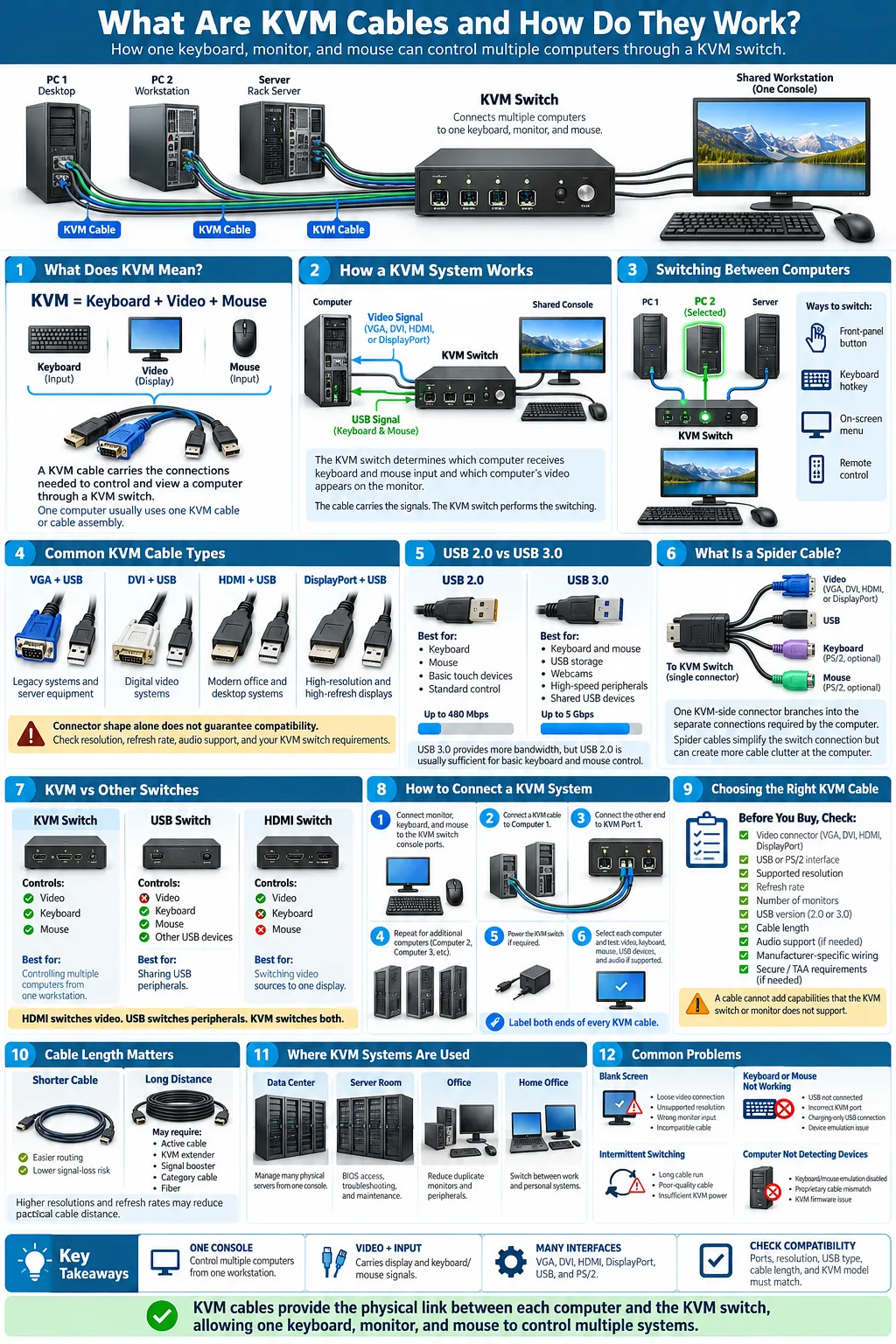
A KVM cable connects a computer to a KVM switch while carrying the signals needed for a keyboard, monitor, and mouse. The name comes from keyboard, video, and mouse, the three functions the system combines. Instead of running separate connections for every peripheral, a KVM setup lets you control two or more computers from one workstation. These cables are common in offices, control rooms, server rooms, and data centers, but they can also simplify home office and multi computer setups. The right cable depends on your computer ports, display resolution, USB speed, cable length, and security requirements.
What Are KVM Cables?
Definition and Basic Function
A KVM cable is a bundled connection designed to link a computer with a KVM switch. It normally carries display output and USB data for input devices through one organized cable assembly. When you press a button on the switch or use a keyboard shortcut, the KVM system changes which computer receives input and which computer appears on the shared display.
The cable itself does not usually perform the switching. That job belongs to the KVM switch. The cable provides the physical path between the computer and switch, reducing the number of individual leads you need to install and label.
Components: USB and Video Cables Combined
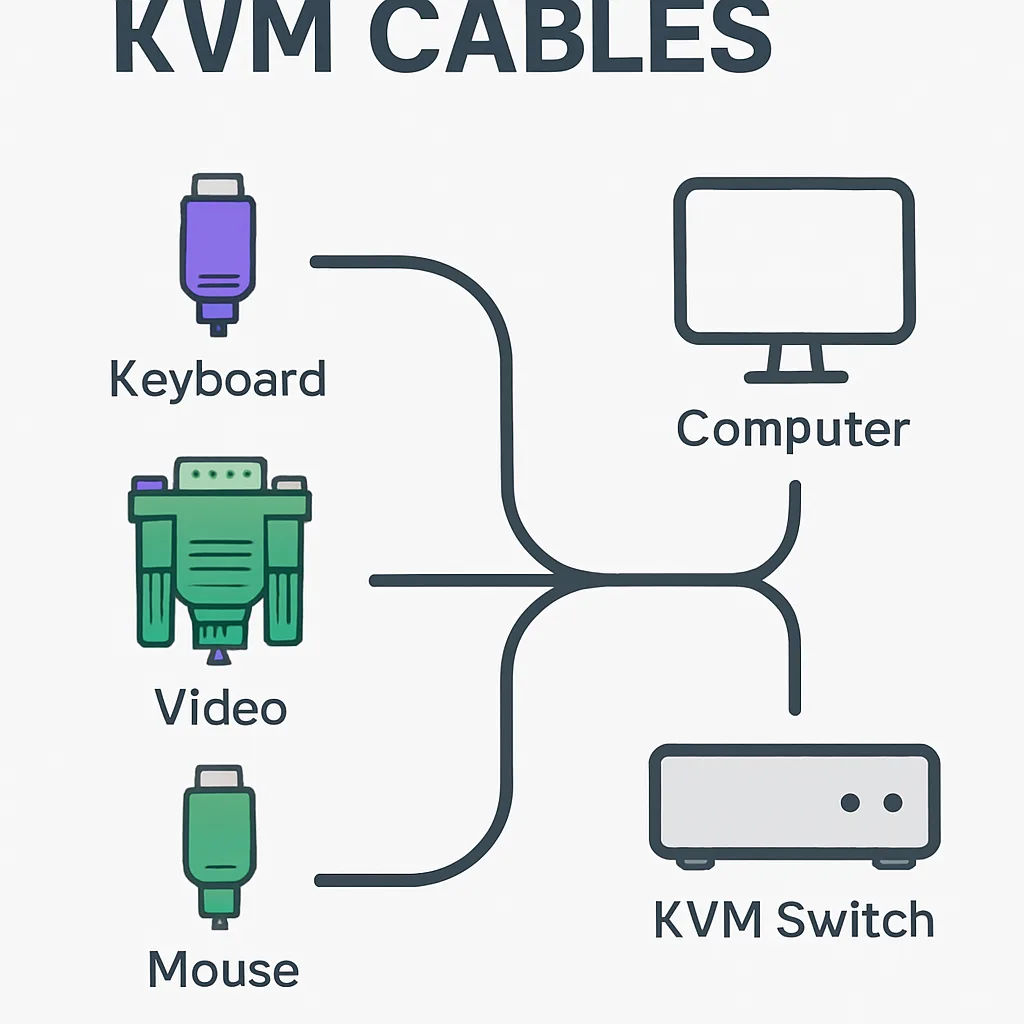
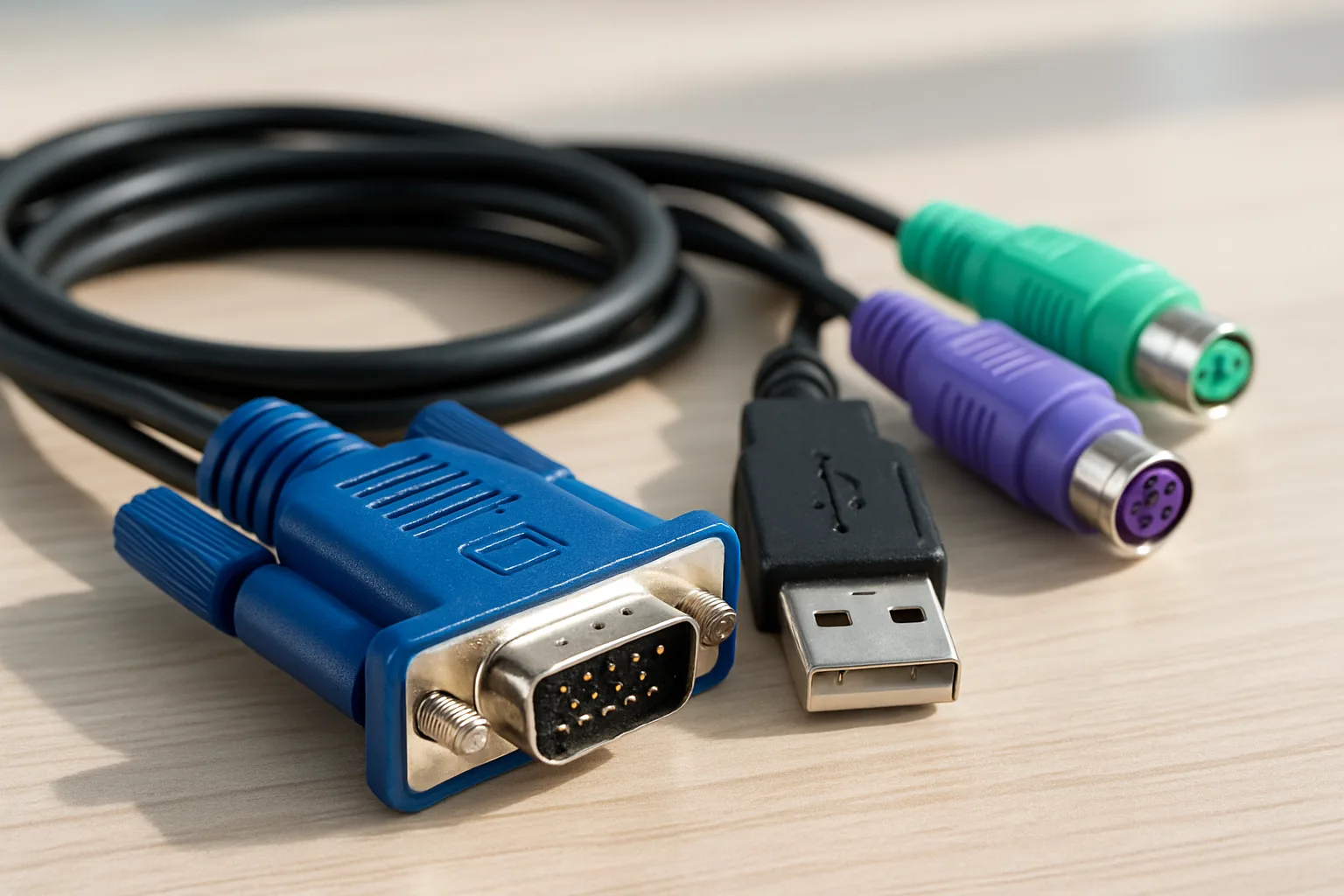
Most assemblies include a USB cable for keyboard and mouse data and a video cable for the monitor signal. Some products use one molded cable with several connectors at one end. Others use detachable leads, which make replacement and upgrades easier.
Audio, microphone, serial, or network connections may also be included in advanced designs. Check the connector layout before buying, because a cable may support the required video standard while lacking the USB or audio connections your KVM switch needs.
How Do KVM Cables Work?
Transmission of Keyboard, Video, and Mouse Signals
A KVM cable carries keyboard, video, and mouse signals between a computer and the switch. The USB connection sends keystrokes and pointer movement to the selected computer. The video connection carries the computer's display output to the monitor through the switch. When you select another computer, the KVM switch changes the active USB path and video path together.
This coordinated signal transmission makes the switch appear to each computer as if its own monitor, keyboard, and mouse were directly connected. Some systems require the switch to emulate these devices continuously so computers do not lose their display settings or stop detecting the keyboard when another port is selected.
Integration with KVM Switches and Extenders
A KVM switch sits between multiple computers and shared peripherals. A local cable connects each computer to a switch port, while separate output connections run to the monitor, keyboard, and mouse. For longer distances, a KVM extender sends the same control and display information over category cable, fiber, or another long range connection.
Compatibility depends on the complete system. The cable, switch, computer, monitor, and extender must support the same video resolution, refresh rate, USB functions, and sometimes audio or touch input.
Types of KVM Cables
Video Interface Types: VGA, DVI, HDMI, DisplayPort
The video connector is the first major difference between KVM cable types. VGA carries an analog video signal and remains useful with older computers and industrial equipment. DVI supports digital video, with some versions also supporting analog output. HDMI can carry digital video and audio through one connector, making it common in consumer and office systems. DisplayPort supports modern high resolution displays, high refresh rates, and daisy chaining on compatible equipment.
Do not choose by connector shape alone. Check the required resolution, refresh rate, color depth, audio support, and HDCP requirements. Passive adapters may work for some conversions, while others require an active converter.
USB Versions: USB 2.0 vs USB 3.0
USB 2.0 is generally sufficient for keyboards, mice, basic touch devices, and standard peripheral control. USB 3.0 provides greater bandwidth for storage, webcams, high speed peripherals, and KVM switches that share USB devices beyond basic input equipment.
Secure and Universal Compatibility Options
Some cables and switches are built for universal compatibility across operating systems and computer platforms. Secure installations may require products listed for government purchasing, certified materials, or TAA compliance. Always confirm the full product specification, because compliance usually applies to a particular model or manufacturing chain rather than every product from a brand.
Why Use KVM Cables?
Benefits in Data Centers and Server Rooms
In a data center, technicians may need to access many physical servers without placing a separate monitor and input set at every rack. In a server room, a KVM system provides a central console for installation, troubleshooting, BIOS access, and maintenance. This is especially useful when a server cannot be reached through remote management software.
KVM cables also help identify each connection. Proper labeling at both ends makes it easier to trace a server to the correct switch port and reduces the chance of disconnecting the wrong machine.
Space, Cost, and Time Savings
One shared console can reduce the number of monitors, keyboards, and mice required in a technical workspace. That can create meaningful equipment cost savings, particularly when many computers need occasional rather than constant local access. A technician can also switch between systems without walking between racks or moving between workstations.
Reducing Cable Clutter and Improving Efficiency
Bundled connections reduce cable clutter compared with running separate loose cables for every function. A cleaner rack is easier to cool, label, inspect, and service. In an office or control room, fewer peripherals free desk space and support better work efficiency.
These benefits depend on planning. Use the correct cable length, label every connection, provide strain relief, and leave enough room for airflow and future equipment.
KVM Cables vs Other Connection Solutions
Difference Between KVM and HDMI
HDMI is a video and audio connection standard. An HDMI cable can connect a computer or media source to a display, but it does not normally carry keyboard or mouse data. A KVM cable combines video with USB connections so a KVM switch can share both the display and input devices between computers.
An HDMI based KVM system may use HDMI for the monitor signal and USB for keyboard and mouse control. The presence of HDMI alone does not make a cable or switch a complete KVM solution.
KVM Switch vs USB Switch
A KVM switch changes the active computer's display output as well as its USB peripherals. A USB switch usually shares only USB devices, such as a keyboard, mouse, printer, or storage drive. You would still need a separate method to switch or duplicate video when using a USB switch.
KVM and Docking Stations Compared
A docking station expands one computer's ports and connects that computer to external displays and peripherals. A KVM system focuses on switching shared peripherals between multiple computers. Some modern docking stations can be combined with KVM functionality, but they are not interchangeable by default.
Choose a KVM when you regularly control several computers from one console. Choose a dock when you mainly need convenient port expansion for one laptop. You may need both when a laptop and desktop must share a monitor, keyboard, and mouse.
Choosing the Right KVM Cable
Matching Cable Type to Device Interfaces
Start by recording the ports on every computer, the KVM switch, and the monitor. Match the video connector, USB connector, audio requirements, and any special control interfaces. For example, a DisplayPort computer needs a cable and switch input that support DisplayPort, while an older workstation may require VGA or DVI.
Also check whether the KVM supports the number of monitors you use, the desired resolution, refresh rate, and operating system. A cable cannot add a capability that the switch or display does not support.
Considerations for Length and Quality
Use the shortest practical cable that reaches comfortably. Longer cables can be harder to route and may be more sensitive to signal loss, especially at high resolutions or refresh rates. Look for secure connectors, adequate shielding, durable strain relief, and clearly identified ends. Active cables, signal boosters, or fiber may be necessary for longer runs.
Brand reputation can help, but specifications matter more than appearance. Products from ATEN, Belkin, and DirectNET may target different environments, so compare the exact model rather than assuming every cable from one brand has the same capabilities.
Compliance and Security Features
For regulated or government installations, verify TAA compliance, warranty terms, country of origin, and documented testing. In sensitive environments, consider whether the KVM requires secure switching, isolation between computers, port control, or protection against peripheral data leakage.
Keep a record of cable models and connection standards. That documentation makes future replacement easier and prevents accidental use of a cable with lower performance or different compliance status.
Where to Buy and Additional Accessories
Popular Brands and Vendors
You can buy KVM cables from specialist IT suppliers, electronics distributors, network equipment vendors, and manufacturer websites. ATEN offers a broad range of KVM hardware and matching cable assemblies. Belkin sells connectivity products for office and professional environments. DirectNET and similar network suppliers may carry KVM cables, adapters, and infrastructure accessories for business installations.
Before ordering, confirm the exact connector combination, cable length, supported resolution, USB version, and return policy. Product photos can be misleading when several models look similar.
Related KVM Accessories and Dongles
Useful accessories include replacement cable sets, DisplayPort, HDMI, DVI, or VGA adapters, console modules, rack mounting hardware, extension systems, and cable labels. Some KVM platforms use computer interface modules or dongles that convert a standard switch port to the computer's available connections.
You may also need active video converters, USB hubs, audio cables, serial adapters, or fiber transceivers. Confirm that each accessory is approved for your KVM model. A generic adapter may pass video but prevent USB switching, audio, hotkey control, or automatic display detection from working correctly.
For a reliable installation, buy the complete connection path as a system. Test every computer, display mode, USB peripheral, and switching function before mounting equipment permanently.
KVM cables are practical connection bundles that let you manage multiple computers from one set of peripherals. To choose correctly, match the video interface and USB version, confirm resolution and length requirements, and check whether your installation needs secure features or TAA compliance. A properly planned KVM setup can simplify a desk, improve a server room, or make a data center console easier to maintain. Before purchasing, compare the complete cable and switch specifications, then label and test every connection after installation.
What does KVM stand for?
KVM stands for keyboard, video, and mouse. A KVM system lets you control multiple computers with one keyboard, display, and mouse.
Are KVM cables the same as HDMI cables?
No. HDMI cables normally carry video and audio, while KVM cables combine a video connection with USB connections for keyboard and mouse control.
Can one KVM cable connect multiple computers?
A single cable normally connects one computer to one KVM switch port. The switch connects multiple computer cable assemblies and lets you select which computer uses the shared peripherals.
Is USB 3.0 better than USB 2.0 for a KVM setup?
USB 3.0 offers more bandwidth and is useful when the KVM shares storage, webcams, or other high speed devices. USB 2.0 is usually enough for basic keyboard and mouse control.
How long can a KVM cable be?
The practical distance depends on the video standard, resolution, refresh rate, USB version, and cable design. For long runs, use an active cable, extender, fiber solution, or a product specifically rated for the required distance.
Do KVM cables work with any computer?
They work when the computer ports, cable connectors, KVM switch, and monitor support compatible standards. Check video output, USB requirements, resolution, refresh rate, and any operating system or security limitations before buying.
-
A KVM switch controls multiple computers from one keyboard, monitor, and mouse, reducing workspace clutter.
-
KVM cables connect each computer to the switch and include USB, PS/2, and proprietary spider cable configurations.
-
KVM systems help everyone from home office users to data center teams manage computers and servers efficiently.
If you need to control two or more computers from one workspace, KVM cables provide the physical link that makes it possible. A KVM system combines a keyboard, video display, and mouse connection so you can move between computers without keeping a separate set of peripherals for each one. The cables connect computers to a KVM switch and carry the signals needed for input and display. Depending on the equipment, they may use USB, PS/2, HDMI, DisplayPort, VGA, or a manufacturer-specific connector. This guide explains how KVM cables work, which types exist, and how to install them correctly.
What is a KVM Switch?
Definition and Purpose
A KVM switch is a hardware device that lets you operate several computers with one keyboard, video display, and mouse. KVM stands for keyboard, video, and mouse. Instead of connecting separate peripherals to every computer, you connect one single console to the switch, then connect the switch to multiple computers.
When you select a computer, the switch routes your keyboard and mouse commands to that system and sends its display output to your monitor. Selection may happen through a front-panel button, a keyboard hotkey, an on-screen display, a remote control, or software. A KVM switch does not usually combine the computers into one system. It simply gives you shared access to them from one control position.
History and Evolution
Early KVM products were designed for offices and server rooms using analog VGA video and PS/2 peripherals. As computers adopted USB, DVI, HDMI, and DisplayPort, KVM switches evolved to support higher resolutions, digital video, audio, USB peripherals, and remote management.
Modern models range from compact two-port desktop units to enterprise systems that manage many servers. Some support 4K video, dual monitors, USB 3.0, audio switching, network access, and secure authentication. The basic purpose remains unchanged: reduce duplicate equipment while giving you fast, reliable access to several computers.
What are KVM Cables?
Components and Functionality
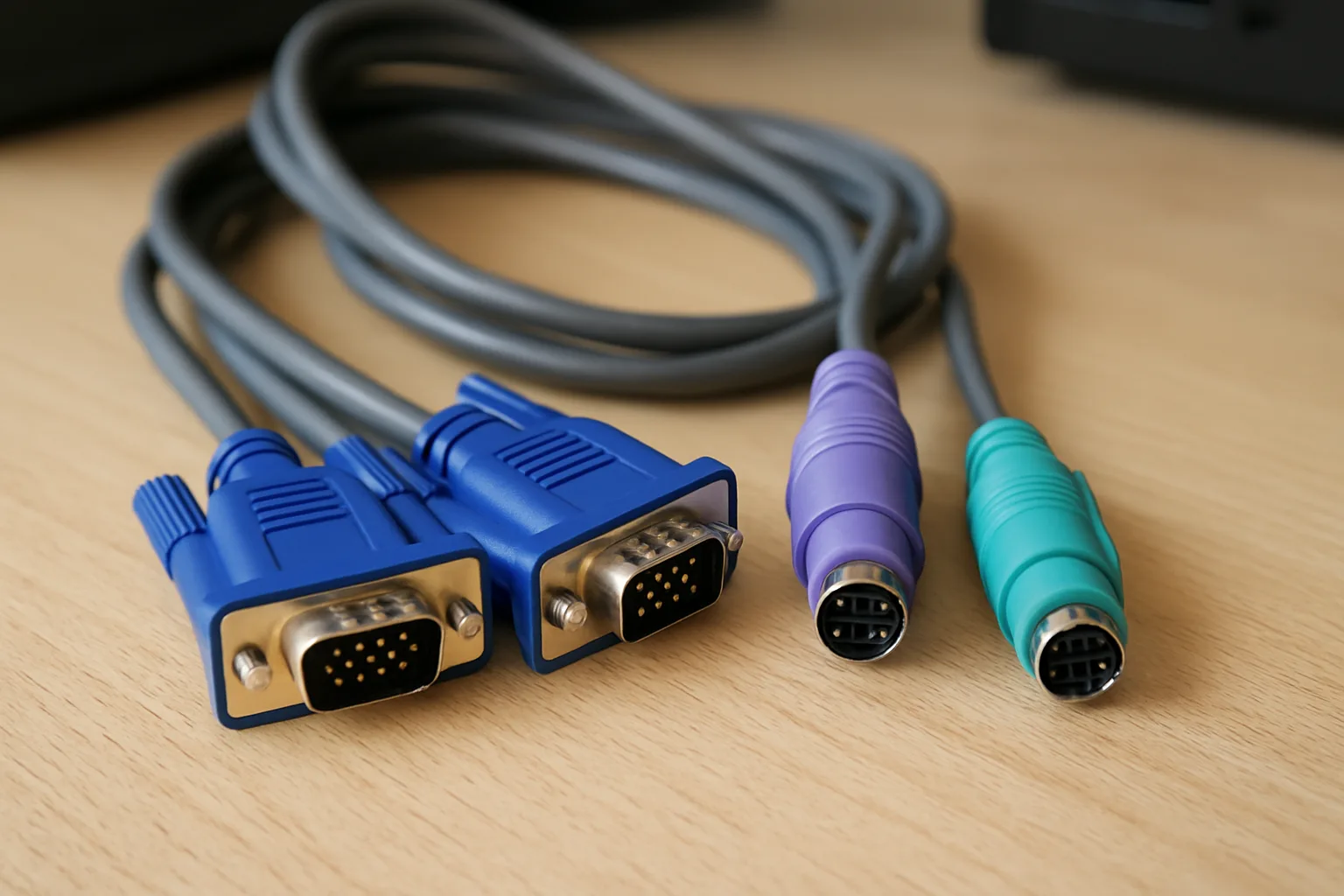
KVM cables are the cables that connect each computer to a KVM switch. A typical cable carries display output and USB or PS/2 signals for the keyboard and mouse. Some cables also carry audio, USB device data, or remote control signals. The exact cable you need depends on the ports on the computer and the ports on the switch.
A cable may have separate connectors for video, keyboard, and mouse, or it may combine those connections into one molded assembly. Digital KVM systems commonly use HDMI, DisplayPort, or DVI for video and USB for control. Older systems often use VGA with PS/2 or USB connectors.
Types of KVM Cables (USB, PS/2, Proprietary)
USB and PS/2 connectors identify the two main control interfaces found in traditional KVM systems. USB cables are common on current computers and can support keyboard, mouse, and sometimes USB hub functions. PS/2 cables are older, dedicated keyboard and mouse connections that remain useful with legacy servers and industrial equipment.
Some manufacturers use proprietary pinouts, meaning the connector may look familiar but its internal wiring follows a specific design. A cable made for one brand or model may not work with another. Always check the switch manual and port diagram before substituting a cable.
Spider Cable Setup Explained
A spider cable setup uses one connector at the KVM switch and several separate leads at the computer. Those leads typically connect to video, USB or PS/2 keyboard, and mouse ports. The design resembles branching legs, which explains the name. Spider cables reduce the number of ports needed on the switch, but they can create a bundle that is harder to label and organize.
How Do KVM Cables Work with a KVM Switch?
Connection Process
The cable connection begins at the computer and ends at a dedicated port on the KVM switch. Connect the computer's video output to the matching video input, then connect its USB or PS/2 keyboard and mouse leads. Connect your monitor, keyboard, and mouse to the console ports on the switch. If the switch supports audio or USB peripherals, connect those cables to the labeled ports as well.
Each computer should use a separate numbered port group. Do not mix the keyboard and mouse leads from one computer with the video lead from another unless the switch specifically supports independent device switching. Label both ends of every cable, especially in a cabinet or desk with several similar connections.
Switching Mechanism Between Computers
The switching mechanism determines which computer receives input and which computer's display reaches the monitor. When you press a port button or use a hotkey, the KVM changes its internal routing. It connects the console keyboard and mouse to the selected computer while directing that computer's video output to the display.
Some KVM switches emulate a keyboard and mouse to every connected computer even when that computer is not selected. This helps prevent boot errors and keeps operating systems from thinking the peripherals were unplugged. More advanced models can switch USB devices independently from video, allowing you to keep a keyboard on one computer while viewing another. Check the product specifications because behavior varies by model.
Differences Between KVM Switches and USB or HDMI Switches
KVM vs USB Switch
A USB switch shares USB peripherals between computers, but it normally does not switch the display. For example, it can let one keyboard, mouse, scanner, or printer move between two computers while each computer remains connected to its own monitor. You must select the computer with a button or software control, and the display arrangement is handled separately.
A KVM switch combines USB or PS/2 peripheral sharing with video switching. That makes it the better choice when you want one workstation to control and view several computers. A USB switch may be cheaper and simpler when you only need to share accessories and already have a monitor for each system.
KVM vs HDMI Switch
An HDMI switch selects one HDMI source and sends it to one display. It is useful for game consoles, streaming devices, cameras, and computers, but it does not normally route keyboard or mouse input. You can view different sources, but you cannot control them through the HDMI switch alone.
A KVM switch handles both control and display, although its supported video signal types vary. A model may support HDMI, DisplayPort, DVI, or VGA, and each interface has limits for resolution, refresh rate, color depth, and cable length. If you need keyboard and mouse control as well as source selection, choose a KVM. If you only need to change what appears on a screen, an HDMI switch may be enough.
How to Hook Up a KVM Switch Using KVM Cables
Step-by-Step Setup Guide
Start by confirming that the switch, computers, and display use compatible ports. Turn off the computers if the manufacturer recommends doing so, particularly with older PS/2 equipment.
- Place the KVM switch where the console cables can reach your keyboard, mouse, and display.
- Connect the keyboard, mouse, and monitor to the switch ports labeled console.
- Connect one KVM cable to the first computer's video, keyboard, and mouse ports.
- Connect the other end to the matching port group on the KVM switch.
- Repeat the process for each additional computer, keeping every cable group on the same numbered port.
- Connect the switch power adapter if it has one, then turn on the display, switch, and computers.
- Select each port and test video, keyboard input, mouse movement, audio, and USB accessories.
Common Setup Challenges and Solutions
A blank screen can result from a loose connector, an unsupported resolution, an incorrect input on the monitor, or a cable that cannot carry the required signal. Reseat each connector and set the computer to a resolution supported by the KVM. If the keyboard or mouse fails, verify that the USB cable is connected to a data port rather than a charging-only port.
Intermittent switching often points to insufficient power, poor cable quality, or a long cable run. Use the supplied power adapter, shorten connections where possible, and avoid mixing unapproved proprietary cables. If a computer does not detect the keyboard after switching, enable keyboard and mouse emulation or update the KVM firmware when that option is available.
Applications and Benefits of Using KVM Cables and Switches
Home Office Use
In a home office, a KVM switch lets you share one desk setup between a work laptop, personal desktop, test computer, or home server. You can keep your keyboard, mouse, and monitor in place instead of filling the desk with duplicate accessories. A dual-monitor KVM may also let you work with two displays, but verify that the switch supports the number and type of video connections you need.
Data Centers and Server Rooms
In a data center, technicians often use KVM equipment to access systems installed in server racks. A rack-mounted KVM can connect one console to many physical servers, reducing the need for a monitor and keyboard at every rack. Some enterprise systems add IP access, letting authorized staff manage servers over a secure network even when operating systems are unavailable.
Brands such as Raritan have long served infrastructure and server management environments. Enterprise KVM products may include user permissions, logging, redundant power, virtual media, and support for high-resolution displays.
Efficiency and Space Saving
The main advantage is multi-device control from one location. Fewer monitors, keyboards, and mice mean less desk or rack space, simpler cable management, lower equipment costs, and less power consumption. KVM systems also make troubleshooting faster because you can move between machines without physically changing connections.
They are not a replacement for remote management in every situation. A KVM still requires compatible cabling and careful labeling, and some video standards have distance limits. However, for local access to several computers, the convenience and reduced clutter are substantial.
Where to Buy KVM Cables and Switches
Popular Brands and Vendors
You can buy KVM equipment from specialist networking suppliers, electronics retailers, computer distributors, and manufacturer websites. ATEN International Co., Ltd. offers desktop, rack-mounted, multi-monitor, and enterprise KVM products. Raritan is widely associated with data center infrastructure and secure server access. IOGEAR provides consumer and small business KVM switches, including compact models for sharing a keyboard, mouse, and display between a few computers.
Retail marketplaces can offer lower prices, but check the exact model number and included cables. Some listings show a switch without the required computer cables, while others include a proprietary cable that is difficult to replace. Manufacturer documentation is especially important when buying used equipment.
What to Look for When Purchasing
First, count the computers you need to connect and choose a switch with enough ports. Then match the switch to your video standard, resolution, refresh rate, and monitor count. Confirm whether it supports HDMI, DisplayPort, DVI, VGA, or another interface, and check whether adapters are allowed.
Next, verify the control interface and cable contents. Look for USB or PS/2 support, included KVM cables, USB hub access, audio switching, hotkey control, push-button selection, and keyboard and mouse emulation. For a data center, consider rack mounting, remote IP access, user permissions, firmware support, and cable length. Buy replacement cables from the same manufacturer when the switch uses a proprietary pinout. A slightly higher upfront cost can prevent compatibility problems and downtime.
Choose KVM cables by starting with the ports and signal standards on your computers, switch, and monitor. USB systems are the most common for current equipment, while PS/2 remains useful for older hardware and proprietary cables may be required for specific models. Once installed, label each connection and test every port before putting the system into regular use. Whether you are simplifying a home office or managing servers, the right KVM switch and cables can give you cleaner equipment, faster access, and more reliable control.
What does KVM stand for?
KVM stands for keyboard, video, and mouse. A KVM switch lets you control multiple computers with one shared keyboard, display, and mouse.
Are KVM cables universal?
No. KVM cables differ by video interface, USB or PS/2 support, wiring, and manufacturer-specific pinouts. Check the switch documentation before buying a replacement.
Can I use a regular USB cable with a KVM switch?
Sometimes, but not always. A standard USB cable may work for a USB control connection, while many KVM systems require a combined cable or a specific cable arrangement for video and peripheral signals.
What is the difference between a KVM cable and an HDMI cable?
An HDMI cable normally carries video and audio only. A KVM cable may carry video plus keyboard and mouse signals, either through separate leads or a combined proprietary assembly.
Can a KVM switch support two monitors?
Yes, some KVM switches support dual or multiple monitors. The switch must have the correct number of video inputs and outputs, and its specifications must support your required resolution and refresh rate.
Why is my monitor blank after connecting a KVM switch?
Check the selected monitor input, reseat every video connector, confirm that the computer output matches the KVM standard, and verify that the resolution and refresh rate are supported. An inadequate cable or missing power adapter can also cause a blank display.
Are KVM switches useful for gaming?
They can be useful for switching between a gaming computer and another system, but input lag, refresh rate, resolution, and adaptive sync support vary. Choose a model specifically rated for your monitor's performance requirements.