How to Check SSD SMART Data Before Failure Happens
Use built-in commands and trusted tools to monitor SSD health and lifespan
-
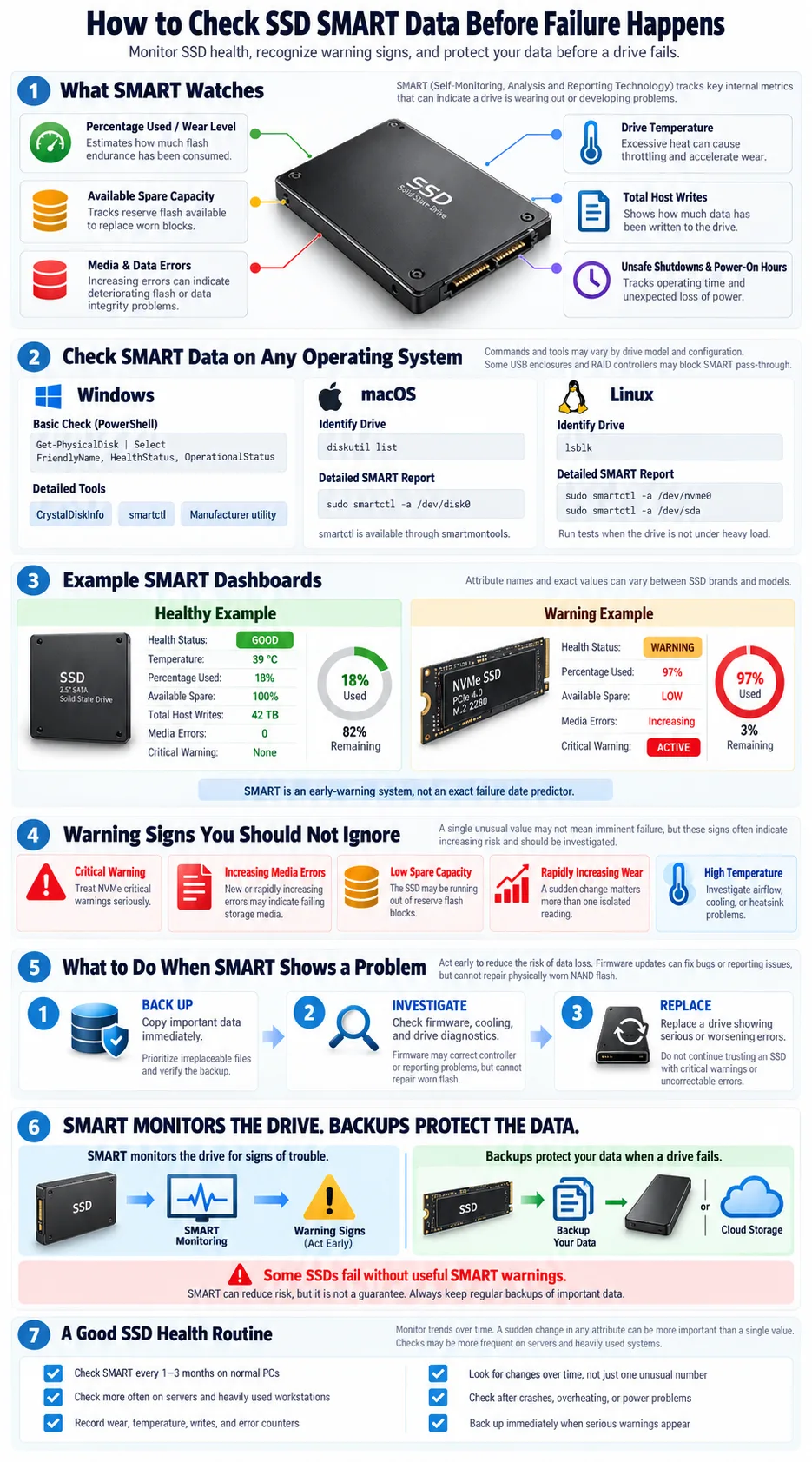
SMART data reveals wear leveling, bad sectors, temperature, and other signs of SSD health.
-
Free options include CrystalDiskInfo for Windows, smartctl for Linux and macOS, and manufacturer utilities.
-
Regular checks support timely firmware updates and backups that can reduce the impact of SSD failure.
Your SSD can appear normal right up until it stops responding, so occasional health checks are worth the few minutes they take. SMART data gives you a view of internal counters that ordinary file browsing cannot show, including drive wear, unsafe shutdowns, temperature, and media errors. You can read these values with built-in operating system commands, open-source utilities, or software from your SSD manufacturer. This guide explains what the data means, how to check it on Windows, macOS, and Linux, and which actions to take when a warning appears.
What is SSD SMART Data?
Definition and Purpose of SMART
SSD health information is commonly exposed through Self-Monitoring, Analysis, and Reporting Technology, usually called SMART. It is a monitoring system built into many SATA and NVMe drives. The drive records attributes about its operation and makes selected information available to the operating system or a storage utility.
SMART is not a guarantee that a drive will never fail. It is an early warning system. Some failures happen without useful advance warnings, while other drives show deteriorating attributes long before they become unusable. Treat a warning as a reason to protect your data, not as a precise prediction of the remaining lifespan.
How SMART Monitors SSD Health
Unlike a hard disk, an SSD has no spinning platters or mechanical heads. Its controller tracks flash wear, spare blocks, data errors, power events, and other performance metrics. The exact attribute names vary by vendor, interface, and firmware, so two SSDs may report similar conditions using different labels.
SMART utilities often show an overall health status, temperature, total host reads and writes, power-on hours, and a percentage of estimated life remaining. NVMe drives may use a smaller standardized set of fields than SATA drives. A missing attribute does not automatically indicate a problem, especially when the drive is behind a USB adapter that does not pass SMART commands.
Why Should You Check Your SSD's SMART Data?
Preventing Data Loss
Checking SMART data helps you identify trouble before an SSD becomes inaccessible. Rising media errors, critical warnings, spare capacity problems, or a rapidly declining life estimate justify an immediate backup. If the drive contains irreplaceable files, do not wait for the overall status to change from good to failing.
Use a backup destination that is separate from the SSD, such as an external drive or reputable cloud storage. Verify that important files open correctly, and make sure you know how to restore them. SMART monitoring complements backups; it does not replace them.
Monitoring SSD Performance and Lifespan
SMART readings can show whether your workload is generating unusually high writes or whether the drive is running too hot. Total bytes written helps you compare actual usage with the manufacturer’s endurance rating, although it does not provide an exact expiration date. Temperature readings can also reveal poor airflow or an inadequate laptop heatsink.
Regular checks create a useful baseline. Record the drive’s life percentage, total writes, temperature, and error counters every few months. A sudden change matters more than a single unusual number. This approach can prompt a timely firmware update, cooling improvement, or replacement before downtime becomes urgent.
How to Check SSD SMART Data on Different Operating Systems
Checking SMART Data on Windows
In Windows, open PowerShell as Administrator and run Windows PowerShell commands such as Get-PhysicalDisk | Select FriendlyName, HealthStatus, OperationalStatus. This gives a basic health view, but it does not expose every SMART attribute. For detailed readings, install CrystalDiskInfo or run smartctl for Windows. Some USB enclosures and RAID controllers hide the drive data.
Checking SMART Data on macOS
macOS does not provide a full SMART attribute viewer in its standard graphical tools. In macOS, open macOS Terminal and use smartctl after installing smartmontools with Homebrew. First identify the disk with diskutil list, then try sudo smartctl -a /dev/disk0. For many external or NVMe devices, you may need a device type option, and some USB bridges do not support pass-through.
Checking SMART Data on Linux
On Linux, install the Linux smartmontools package through your distribution’s package manager. Identify drives with lsblk, then run sudo smartctl -a /dev/nvme0 for an NVMe drive or sudo smartctl -a /dev/sda for a SATA drive. You can request a short test with sudo smartctl -t short /dev/sda, then review the result with the same report command. Run tests when the drive is not under heavy load.
Popular Tools to Read SSD SMART Data
CrystalDiskInfo for Windows
CrystalDiskInfo is a popular Windows utility for viewing drive temperature, interface details, power-on hours, total reads and writes, SMART attributes, and an overall status. Its simple Good, Caution, or Bad labels are useful for a quick check, while the detailed table helps you investigate individual counters. Download it from a trustworthy source and pay attention to optional installation choices.
smartctl for Linux and macOS
smartctl is a command-line reader and tester included in the smartmontools project. It works across Linux and macOS and is useful when you need precise output, scripts, or remote administration. Commands such as smartctl -a, smartctl -H, and smartctl -x display increasingly detailed information. Use the correct device path and avoid destructive commands unless you understand their effect.
Manufacturer-Specific Utilities
Vendor software can interpret proprietary attributes more accurately than generic diagnostic tools. Samsung Magician can report Samsung drive health, firmware, total bytes written, and supported tests. Intel SSD Toolbox, where applicable to older Intel drives, provides health and diagnostic features. Other manufacturers offer similar utilities. Use the official tool for your model, especially when checking a firmware update or a vendor-specific life estimate.
Understanding SSD SMART Attributes
Common SMART Attributes Explained
Attribute names differ, but several categories appear frequently. Wear leveling or percentage-used values estimate how much of the flash endurance has been consumed. Total host writes show data written by the system, while NAND writes may include controller activity. A high value is not automatically bad if it remains within the drive’s rated endurance.
Reallocated or retired blocks indicate flash cells or blocks removed from normal use. Increasing uncorrectable errors, media errors, or critical warnings deserve immediate attention. Bad sectors are more commonly associated with hard disks, but SSD utilities may use similar language for unusable or failing flash blocks. Unsafe shutdown counts record power losses and do not necessarily mean the SSD itself is defective.
Temperature monitoring matters because sustained heat can reduce performance through throttling and may accelerate wear. Check the current temperature and, when available, the recorded lifetime maximum. Also review power-on hours, percentage used, spare capacity, and data integrity error counts.
Interpreting Health Status and Warnings
Read the raw values alongside the normalized values and threshold information. Vendor software may convert several attributes into a single percentage, so do not compare that percentage directly between brands. A stable attribute is usually less concerning than one that changes quickly.
For NVMe drives, a critical warning, degraded available spare, media error count, or percentage-used value near its limit should be taken seriously. A temperature warning may be solved with better airflow, but repeated warnings still require investigation. If a tool cannot read an attribute, first check whether the interface or enclosure supports SMART pass-through.
What to Do If Your SSD Shows SMART Errors
Backing Up Data
Stop treating the affected SSD as reliable storage. Copy important files to a verified backup immediately, starting with documents, photos, project files, and password recovery data. If the drive is unstable, avoid repeated scans, benchmarks, and unnecessary reboots. A failing SSD can stop responding during a long copy, so prioritize irreplaceable data and use a second destination when possible.
Updating Firmware
After your data is safe, check the manufacturer’s support page or official utility for a firmware update. A firmware update can fix controller bugs, improve compatibility, or correct inaccurate health reporting. Read the release notes, connect reliable power, and follow the vendor’s instructions. Do not interrupt the process, and do not assume an update will repair existing flash damage.
Replacing the SSD
Replace the drive when SMART reports a critical warning, uncorrectable errors, rapidly increasing retired blocks, or a life estimate at its limit. Replace it sooner if you experience freezes, missing files, read errors, or repeated disconnects. Clone the drive only if it remains stable and you have a backup. Otherwise, restore your files to a new SSD from backup. After installation, confirm the new drive’s health, enable backups, and keep the old SSD out of service until you have decided how to securely erase or dispose of it.
Make SSD health checks part of your maintenance routine, especially for a boot drive or any SSD holding important work. Use CrystalDiskInfo on Windows, smartctl through smartmontools on macOS or Linux, or the manufacturer’s utility for model-specific details. Record the important counters, watch for changes, and back up data as soon as a warning appears. SMART cannot predict every failure, but it gives you useful evidence to act before a drive problem becomes a data loss event.
How often should you check SSD SMART data?
Check it every one to three months for a normal personal computer, and more often for a server or heavily used workstation. Also check after crashes, overheating, power problems, or unusual performance.
Can Windows show SSD SMART data without extra software?
Windows PowerShell can show a basic physical disk health status, but it usually does not expose every SMART attribute. CrystalDiskInfo, smartctl, or the manufacturer’s utility provides more detailed information.
What does a failing SMART status mean?
It means the drive has detected a serious condition or crossed a vendor-defined threshold. Back up important data immediately and plan to replace the SSD rather than relying on it for continued storage.
Can SMART data be wrong on an external SSD?
Yes. USB adapters, docks, and enclosures may block SMART commands or translate the results incorrectly. Connect the SSD directly when possible, or use an enclosure that explicitly supports SMART pass-through.
Is a high SSD temperature a SMART error?
A high temperature may trigger a warning, but a warm reading alone does not prove the SSD is failing. Check the drive’s documented operating range, improve airflow, and watch whether the temperature remains high or causes throttling.
Does SSD percentage used predict the exact failure date?
No. It is an endurance estimate based on the manufacturer’s model and the drive’s recorded usage. A low remaining-life value suggests replacement planning, but SSDs can fail earlier or continue working longer.