Alienware 16X Aurora AC16251 Upgrade Guide: RAM, SSDs and Compatibility
Explore memory and storage upgrades for the LAC16251-9300BLU-PUS, including supported capacities, compatible part numbers and installation requirements.
The Alienware 16X Aurora AC16251 is a 16-inch gaming laptop with a few worthwhile upgrade options. If you own the LAC16251-9300BLU-PUS configuration with an Intel Core Ultra 9 290HX Plus processor, NVIDIA GeForce RTX 5070 graphics, 16GB of memory and a 1TB SSD, the two upgrades worth considering are additional RAM and storage.
Unlike some gaming laptops with soldered memory, the 16X Aurora has two removable DDR5 SO-DIMM slots. It also has two internal M.2 SSD slots, allowing you to add storage without necessarily replacing your existing drive.
There are limits, though. Not every Alienware 16X Aurora configuration supports the same SSD speeds, and some third-party storage capacities exceed Dell's published specifications. This guide separates Dell-documented limits from manufacturer-listed compatible parts so you can make an informed decision.

-
Memory upgrades to 64GB using two 32GB DDR5 SO-DIMMs, replacing the factory 16GB configuration.
-
Two internal M.2 slots support PCIe Gen4 NVMe SSDs, with Dell documenting up to 2TB per 2280 slot.
-
The CPU and RTX 5070 graphics are not documented as independently upgradeable components.
Alienware 16X Aurora LAC16251-9300BLU-PUS Specifications and Upgrade Limits
| Component | Factory Configuration | Upgrade Options |
|---|---|---|
| Model | Alienware 16X Aurora AC16251, LAC16251-9300BLU-PUS | 16-inch laptop chassis |
| Processor | Intel Core Ultra 9 290HX Plus | No documented standalone CPU upgrade |
| Graphics | NVIDIA GeForce RTX 5070 Laptop GPU, 8GB GDDR7 | No documented standalone GPU upgrade |
| Memory | 16GB DDR5-5600, 2 x 8GB | Up to 64GB using 2 x 32GB SO-DIMMs |
| Memory Slots | 2 DDR5 SO-DIMM slots | Both slots replaceable |
| Storage | 1TB PCIe NVMe SSD | 2 M.2 NVMe slots; Dell documents up to 2TB per 2280 slot |
| Storage Interface | PCIe NVMe | PCIe Gen4 for the RTX 5070 configuration |
| Wireless Networking | Wi-Fi 7 configuration | Replaceable wireless card; alternatives require compatibility verification |
| Battery | 96Wh six-cell configuration listed by Dell | Service-replaceable; replacement part number requires verification |
| Display | 16-inch OLED, 2560 x 1600, 240Hz | Display repair possible; no documented display performance upgrade |
Memory Upgrades: From 16GB to 32GB or 64GB
Upgrading memory is one of the most straightforward improvements you can make to the Alienware 16X Aurora. The factory 16GB configuration uses two 8GB DDR5 modules, and both can be replaced.
Dell specifies a 64GB maximum memory capacity across two DDR5 SO-DIMM slots. That gives you two practical upgrade choices: 32GB using two 16GB modules, or 64GB using two 32GB modules.
For gaming alongside browsers, communication apps and other background programs, 32GB gives you considerably more working room than 16GB. If you also run virtual machines, large development projects or memory-heavy creative applications, 64GB may be more useful.
Because both slots are occupied in the factory configuration, you cannot reach either capacity simply by adding another module. You need to replace the existing pair.
Alienware 16X Aurora Memory Specifications
| Specification | Supported Configuration |
|---|---|
| Memory Type | DDR5 SO-DIMM, non-ECC, unbuffered |
| Physical Slots | 2 |
| Factory Memory | 16GB, 2 x 8GB |
| Maximum Capacity | 64GB, 2 x 32GB |
| Factory Memory Speed | 5600 MT/s |
| Additional Dell-Documented Speed | 6400 MT/s self-upgrade configurations |
| Channel Configuration | Dual-channel with matched modules |
| Recommended Installation | Matched pair of identical-capacity modules |
Recommended Alienware 16X Aurora Memory Upgrades
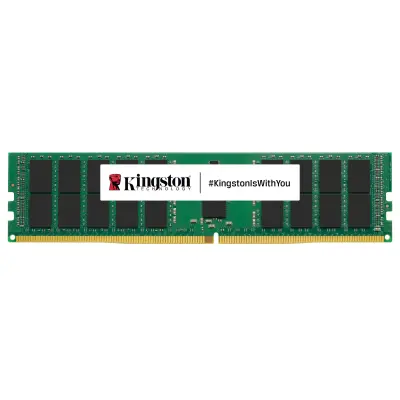
Install two 16GB Kingston DDR5-5600 modules to replace the factory 8GB pair.
Install two 32GB Kingston DDR5-5600 modules to reach Dell's documented 64GB maximum.
An alternative Kingston 32GB dual-rank SO-DIMM listed for the AC16251; install as a matched pair.
Compatible Kingston DDR5 Memory Options
|
KCP556SS6-8
|
KCP556SS8-16
|
KCP556SS8-32
|
KCP556SD8-32
|
|
|---|---|---|---|---|
| Capacity Per Module | 8GB | 16GB | 32GB | 32GB |
| Memory Type | DDR5 SO-DIMM | DDR5 SO-DIMM | DDR5 SO-DIMM | DDR5 SO-DIMM |
| Speed | 5600 MT/s | 5600 MT/s | 5600 MT/s | 5600 MT/s |
| CAS Latency | CL46 | CL46 | CL46 | CL46 |
| Rank Organization | 1Rx16 | 1Rx8 | 1Rx8 | 2Rx8 |
| Modules for 32GB | Not recommended for a 32GB upgrade | 2 modules | Not necessary | Not necessary |
| Modules for 64GB | Not applicable | Not applicable | 2 modules | 2 modules |
Should You Choose DDR5-5600 or DDR5-6400?
Dell documents DDR5-5600 factory configurations and DDR5-6400 self-upgrade support. However, those specifications do not mean that every DDR5-6400 SO-DIMM will operate at its advertised speed in this laptop.
The Kingston modules listed above are DDR5-5600 parts identified in Kingston's AC16251 compatibility catalog. They provide a straightforward option without relying on an unverified 6400 MT/s part number.
If you want 6400 MT/s memory, check for an exact module qualification covering your AC16251 configuration before purchasing. The operating speed can depend on firmware and the module's supported memory profiles.
Memory Installation Considerations
Use matched modules wherever possible. Avoid mixing different capacities, speeds or module organizations when you can install an identical pair instead. The system does not support desktop DDR5 DIMMs, and server RDIMMs are not interchangeable with laptop SO-DIMMs.
SSD Upgrades: Add a Second NVMe Drive or Replace the Original
The Alienware 16X Aurora has two internal M.2 NVMe SSD slots. That is useful because you can expand storage without necessarily replacing your existing operating system drive.
Both slots support M.2 2230 and M.2 2280 form factors. For the RTX 5070 configuration covered here, Dell documents PCIe Gen4 storage support and capacities up to 2TB per M.2 2280 slot.
If your original 1TB SSD is still installed, adding a 2TB drive provides 3TB of combined physical storage. Replacing the original with another 2TB drive allows a Dell-documented configuration of up to 4TB across two 2280 SSDs.
A second drive is especially convenient if you want to keep Windows and your main applications on the original SSD while placing games, media or project files on the new drive.
Alienware 16X Aurora SSD Compatibility and Limits
| SSD Form Factor | Interface | Dell-Documented Capacity | Important Notes |
|---|---|---|---|
| M.2 2230 | PCIe Gen4 NVMe | Up to 1TB per slot | Compact M.2 form factor; compatible mounting position required |
| M.2 2280 | PCIe Gen4 NVMe | Up to 2TB per slot | Preferred option for larger Dell-documented capacities |
| M.2 2280 Opal 2.0 SED | PCIe Gen4 NVMe | Up to 2TB per slot | Self-encrypting drive configuration |
| M.2 2280 Gen5 | PCIe Gen5 NVMe | Not documented at Gen5 speed for the RTX 5070 configuration | Dell reserves Gen5 SSD1 support for RTX 5070 Ti configurations |
Recommended M.2 NVMe SSD Upgrades

A Kingston NV3 1TB Gen4 M.2 2280 SSD within Dell's documented capacity limit.
A Kingston NV3 2TB Gen4 M.2 2280 SSD matching Dell's documented maximum per 2280 slot.
A Kingston NV3 1TB M.2 2230 SSD that fits Dell's documented 2230 capacity specification.
A smaller Kingston NV3 Gen4 M.2 2280 SSD for installations needing modest additional storage.
Compatible Kingston NV3 SSDs Within Dell's Published Limits
|
SNV3SM3/500G
|
SNV3SM3/1T0
|
SNV3S/1000G
|
SNV3S/2000G
|
|
|---|---|---|---|---|
| Capacity | 500GB | 1TB | 1TB | 2TB |
| Form Factor | M.2 2230 | M.2 2230 | M.2 2280 | M.2 2280 |
| Interface | PCIe 4.0 NVMe | PCIe 4.0 NVMe | PCIe 4.0 NVMe | PCIe 4.0 NVMe |
| Dell Capacity Limit | Within documented limit | Within documented limit | Within documented limit | Within documented limit |
| Typical Upgrade Use | Compact storage replacement | Compact 1TB replacement | Additional game or application storage | Maximum Dell-documented capacity per 2280 slot |
Can You Install a 4TB SSD?
There is a difference between Dell's documented storage limits and what an SSD manufacturer lists as compatible.
Dell specifies up to 2TB per M.2 2280 slot. Kingston's AC16251 compatibility catalog also lists the SNV3S/4000G, a 4TB M.2 2280 NVMe SSD, and the SNV3SM3/2T0, a 2TB M.2 2230 model.
Those larger drives have model-level manufacturer compatibility listings, but their capacities exceed Dell's published limits for the corresponding form factors. That distinction matters if you need a configuration backed by Dell's official documentation.
For a straightforward upgrade within Dell's specifications, choose a 2TB M.2 2280 SSD such as the Kingston SNV3S/2000G. If you are considering a larger drive, confirm the exact configuration with the SSD manufacturer and understand that Dell does not document the higher capacity.
Does This Alienware Support PCIe Gen5 SSDs?
The AC16251 family includes configurations with different graphics processors, and Dell's storage documentation distinguishes between them. PCIe Gen5 SSD support is specified for SSD1 on RTX 5070 Ti configurations, not for the RTX 5070 model covered in this guide.
Kingston lists FURY Renegade G5 drives under the broader AC16251 compatibility catalog, including the SFYR2S/1T0 and SFYR2S/2T0. That does not establish Gen5 operation on this particular laptop.
A Gen5 drive should not be purchased for an expected Gen5 performance benefit in the RTX 5070 configuration. A supported Gen4 SSD is the more appropriate choice.
SSD Thermal Shields and Mounting Hardware
Dell requires an SSD thermal shield with a thermal pad when installing or replacing storage. If your second slot is empty, inspect it before ordering to determine whether the shield and mounting hardware are present.
The correct shield, mounting position and screw must match the selected SSD form factor. The exact Dell replacement kit part number was not established in the available documentation, so obtain it through Dell using your Service Tag rather than assuming a generic kit will fit.
📷 IMAGE PLACEHOLDER
Variable: alienware-16x-aurora-dual-m2-ssd-slots
Alt: Alienware 16X Aurora AC16251 motherboard showing the two M.2 NVMe storage positions and thermal shields
Caption: The laptop provides two M.2 SSD positions. Check the mounting hardware and required thermal shields before adding a second drive.
Processor and Graphics: What Can Actually Be Upgraded?
The LAC16251-9300BLU-PUS comes with an Intel Core Ultra 9 290HX Plus processor and an NVIDIA GeForce RTX 5070 Laptop GPU with 8GB of GDDR7 memory.
Neither component is documented as a conventional, independently replaceable upgrade. Dell provides a service procedure for removing the system board, but that does not make the processor or graphics processor a supported drop-in upgrade.
Other AC16251 configurations may use different graphics processors, including the RTX 5070 Ti. Those models can also have different cooling and storage support. You should not assume that replacing the motherboard or cooling assembly with parts from another configuration creates a validated upgrade path.
If you need more processor or GPU performance, that is a reason to compare different laptop configurations rather than purchase individual CPU or graphics components for this system.
Wireless Networking: Replaceable Wi-Fi 7 Hardware
The Alienware 16X Aurora has a removable internal wireless card. Dell lists a MediaTek MT7925 Wi-Fi 7 configuration with 2x2 wireless connectivity and Bluetooth support.
The wireless card has a documented removal procedure, so replacing a failed module is possible. However, physical serviceability is not the same as compatibility with every M.2 wireless adapter.
Before ordering a replacement, check the installed module and obtain a matching Dell-approved service part using your Service Tag. The MT7925 identifies the wireless module family, but it is not a verified Dell spare-part number for this specific retail configuration.
Wireless Networking and Other Serviceable Components
| Component | Documented Capability | Upgrade or Replacement Guidance |
|---|---|---|
| Wireless Card | Removable internal module; MediaTek MT7925 Wi-Fi 7 listed by Dell | Verify the exact replacement module before purchasing |
| Processor | Intel Core Ultra 9 290HX Plus | No documented standalone CPU upgrade |
| Graphics | NVIDIA GeForce RTX 5070 Laptop GPU, 8GB | No documented standalone GPU upgrade |
| Cooling Assembly | Serviceable fan and heatsink components | Replace with configuration-matched Dell service parts |
| Battery | 96Wh six-cell configuration listed by Dell | Service-replaceable; exact replacement number must be verified |
| SSD Thermal Shields | Required during SSD installation | Obtain the correct shield and thermal pad for the selected slot |
Battery, Power Adapter and Cooling Replacements
Dell documents procedures for servicing the battery and internal cooling components of the AC16251. These are useful when repairing an aging laptop, but they should not be confused with performance upgrades.
Battery Replacement
Dell lists a six-cell 96Wh battery configuration for the AC16251. The battery is internally installed and service-replaceable. It is not a removable external battery pack.
Battery replacements should be matched to the original system configuration and Dell part number. The exact replacement SKU for the Best Buy LAC16251-9300BLU-PUS was not independently verified.
Power Adapter
Dell lists a 280W, 7.4mm external power adapter for an AC16251 configuration. Before purchasing a replacement, verify the adapter wattage, connector and Dell part number supplied with your particular laptop.
Using a higher-wattage adapter does not automatically increase CPU or GPU performance, and a lower-wattage adapter may not meet the laptop's power requirements.
Fans and Heatsinks
The internal cooling assembly is serviceable. Dell also documents cooling differences between some GPU configurations, including additional VR heatsinks on the RTX 5070 Ti version.
If a fan fails or the heatsink needs replacement, order the assembly matched to your RTX 5070 system rather than assuming cooling components are interchangeable across all AC16251 models.
Before You Upgrade Your Alienware 16X Aurora
A little preparation can prevent an otherwise simple memory or SSD upgrade from becoming a troubleshooting project.
- Confirm the model. Verify that your laptop is the AC16251 and check its Dell Service Tag. The standard Alienware 16 Aurora and older x16 models have different hardware.
- Check the current memory configuration. The listed Best Buy model ships with two 8GB modules. Plan on replacing both for a 32GB or 64GB upgrade.
- Use the correct memory type. Choose compatible non-ECC DDR5 SO-DIMMs, not desktop DIMMs or server RDIMMs.
- Review BIOS updates. Check Dell's support page for firmware updates and installation notes. No specific minimum BIOS version for the Kingston parts in this guide was verified.
- Inspect the second SSD slot. Confirm the screw mount and thermal shield are available before installing an additional M.2 drive.
- Back up your files. If replacing the boot SSD, prepare your recovery or cloning method and save your BitLocker recovery key if encryption is enabled.
- Follow Dell's service instructions. Shut down, disconnect power and follow the documented safety and internal-component procedures before opening the laptop.
You do not need a new power supply, PCIe riser or upgraded cooling assembly for the documented DDR5 memory and Gen4 SSD upgrades. Those types of prerequisites apply to some servers and workstations, but not to these particular laptop upgrades.
Which Alienware 16X Aurora Upgrades Are Worth Doing?
For most owners of the 16GB and 1TB configuration, the best starting point is a 32GB memory upgrade. Replacing the two factory 8GB modules with two 16GB modules provides more room for demanding applications and multitasking without paying for capacity you may never use.
If you regularly run virtual machines or memory-intensive software, 64GB is the documented maximum and a reasonable longer-term option.
For storage, adding a 2TB M.2 2280 Gen4 NVMe SSD is particularly convenient. You can keep the original 1TB drive and expand to 3TB of combined physical capacity without immediately migrating Windows to another SSD.
There is little reason to pursue a standalone CPU or GPU upgrade, because Dell does not document either as a supported replacement path. Memory and storage are where this Alienware offers the clearest opportunities to extend its useful life.
What is the maximum RAM for the Alienware 16X Aurora AC16251?
Dell documents a maximum of 64GB using two 32GB DDR5 SO-DIMM modules. The LAC16251-9300BLU-PUS ships with two 8GB modules, so reaching 64GB requires replacing both.
Can I upgrade my Alienware 16X Aurora from 16GB to 32GB?
Yes. Install a matched pair of compatible 16GB DDR5 SO-DIMMs. Kingston KCP556SS8-16 is listed for the AC16251, and two modules provide 32GB.
Does the Alienware 16X Aurora have two SSD slots?
Yes. Dell documents two internal M.2 NVMe SSD slots supporting 2230 and 2280 form factors. You can add a second drive if the necessary mounting hardware and thermal shield are available.
What is the maximum SSD capacity in the Alienware 16X Aurora?
Dell documents up to 2TB per M.2 2280 slot, allowing 4TB total across two drives. Kingston also lists larger capacities for the AC16251, but those exceed Dell's published limits.
Can the RTX 5070 Alienware 16X Aurora use a PCIe Gen5 SSD?
Dell specifies PCIe Gen5 SSD support for SSD1 on RTX 5070 Ti configurations, not the RTX 5070 model. Choose a compatible PCIe Gen4 NVMe SSD for the documented interface.
Can I upgrade the processor or graphics card?
Dell does not document standalone processor or GPU upgrades for this laptop. Different AC16251 configurations may use different CPUs or graphics processors, but their existence does not establish an interchangeable upgrade path.
Do I need a heatsink when installing a second SSD?
Dell requires an SSD thermal shield with a thermal pad. Inspect the empty slot and obtain the correct Dell mounting and thermal components if they are missing.