Common Misperceptions About Solid State Drives Explained Clearly
Learn what SSDs really do, how they fail, and why common advice can be misleading
-
SSDs often develop warning signs before failure, although some controller faults can happen abruptly.
-
Degaussing works for HDDs, but it cannot erase SSD data because SSDs use flash memory.
-
SSDs can experience file fragmentation and have failure patterns that differ from HDDs.
Solid State Drives have become standard in laptops, desktops, servers, and external storage, but outdated advice still shapes how many people use them. Some believe SSDs never fail, while others assume they become unusable after a fixed number of writes. Both views are too simple. SSDs use a different storage architecture from mechanical drives, so their performance, warning signs, maintenance needs, and disposal methods also differ. This guide examines common misperceptions about SSD reliability, fragmentation, latency, capacity, failure rates, and data erasure so you can protect your files and make better storage decisions.
What Are Solid State Drives and How Do They Differ from HDDs?
Basic SSD Technology and Flash Memory
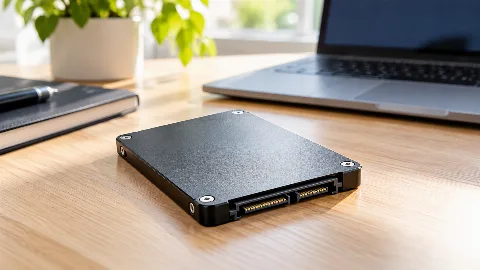
SSDs store information in nonvolatile flash memory chips rather than on spinning magnetic platters. A drive's controller manages those memory cells, translates logical addresses, corrects errors, and distributes writes across the available storage. Because there are no moving heads, motors, or platters, an SSD can access data quickly and operate silently.
Comparison with Hard Disk Drives
Hard Disk Drives, commonly called HDDs, use a magnetic surface and a mechanical read and write head. The head must move to the correct location while the platter spins, creating seek time and rotational delay. An SSD can usually retrieve data with far less delay, while an HDD often offers more capacity for less money. HDDs can also provide clearer mechanical warning signs, such as clicking, grinding, or repeated spin-up attempts.
Advantages and Common Uses
SSDs are useful for operating system drives, application storage, gaming computers, business laptops, and workloads that involve frequent random access. They generally resist vibration better, consume less power, and make computers feel faster during startup and file access. However, an SSD is not automatically the best choice for every task. Large archives and backup repositories may still favor HDDs because capacity per dollar matters more than access speed.
Common Misperceptions About SSD Reliability and Failure
Myth: SSDs Fail Suddenly Without Warning
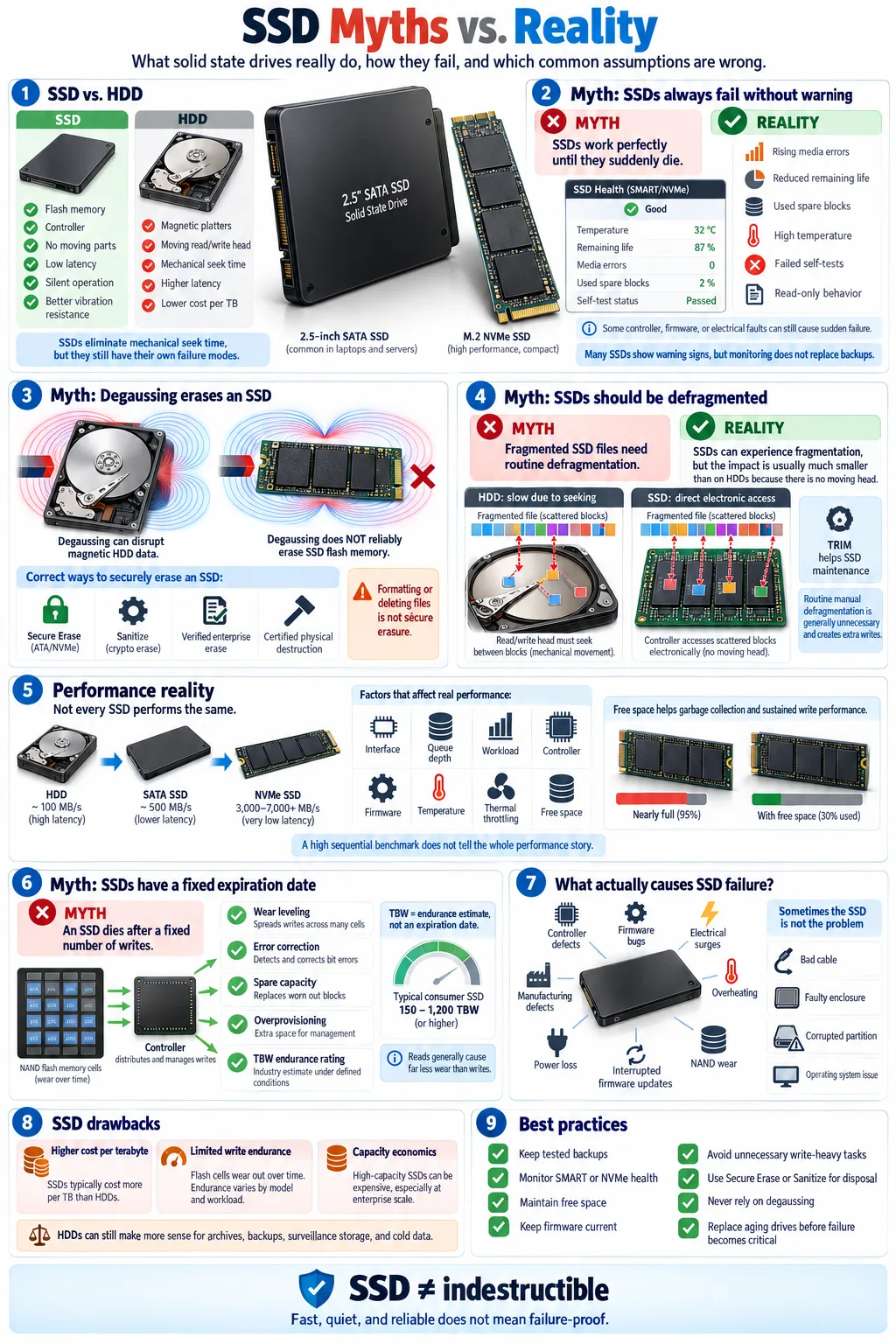
A common belief is that every SSD works normally until it instantly becomes unreadable. That can happen, especially when the controller, firmware, or power protection circuit fails, but it is not the only pattern. Many drives show increasing error counts, reduced available spare blocks, performance changes, or warnings from monitoring software before a serious problem develops.
Reality: Gradual Degradation and Warning Signs
Modern drives expose health information through SMART data and, depending on the interface, NVMe health logs. Look for rising media errors, failing self-tests, excessive temperature, reduced remaining life, or a growing percentage of used spare capacity. These indicators are useful, but they are not guarantees. A healthy report cannot protect you from a sudden electrical or firmware fault, so backups remain essential.
How SSD Failure Differs from HDD Failure
Drive failure in an SSD often means the controller can no longer map data, the firmware enters a read-only state, or memory cells exceed their usable error correction limits. An HDD may degrade through bad sectors, motor problems, or head damage. In both cases, the practical risk is data loss. Matthew Humphries has discussed how SSD behavior differs from traditional disk assumptions, and that distinction matters when choosing monitoring and recovery strategies. Do not interpret quiet operation as proof of perfect health.
Misunderstandings Around SSD Data Erasure and Disposal
Why Degaussing Does Not Work on SSDs
Degaussing exposes a magnetic drive to a powerful changing magnetic field, disrupting data stored on magnetic platters. It is effective for many HDDs, but it does nothing useful to SSD memory cells. Since an SSD stores bits electronically in flash memory, applying a magnetic field does not reliably remove the stored information and may simply damage nearby equipment.
Challenges of Secure Data Erasure on SSDs
Data erasure is more complicated because SSDs use spare cells, overprovisioned space, garbage collection, and wear distribution. A simple overwrite may reach the logical block presented to the operating system without reaching every physical cell that once held a file. Deleted data can therefore remain in remapped blocks or other areas that normal software cannot directly address.
Recommended Methods for SSD Disposal
For reusable drives, use the manufacturer's built-in Secure Erase or Sanitize command, following the documentation for the specific SATA or NVMe model. Enterprise environments should verify completion and retain an audit record. When reuse is not appropriate, certified physical destruction is more dependable, especially for highly sensitive information. Secure disposal should match the data classification, regulatory requirements, and recovery risk. Do not rely on formatting, deleting files, or degaussing alone.
Performance Myths: Fragmentation and Latency in SSDs
Does File Fragmentation Affect SSDs?
File fragmentation occurs when parts of a file are stored in separate physical or logical locations. SSDs handle scattered reads much better than HDDs because they do not move a mechanical head between fragments. Fragmentation can still create overhead for the operating system and file system, and heavily fragmented data may increase the amount of metadata or controller work involved. The effect is usually smaller than on an HDD, so routine manual defragmentation is generally unnecessary and can create extra writes.
Understanding SSD Latency Compared to HDDs
Latency is the delay between a request and the start of the response. SSDs typically have far lower access latency than HDDs, particularly for small random reads. That advantage does not mean every SSD performs identically. SATA limits throughput compared with many NVMe drives, and queue depth, thermal throttling, firmware, and workload type all influence the result. A fast sequential benchmark may not predict everyday application performance.
Role of the SSD Controller and Free Space
The SSD controller coordinates flash translation, error correction, garbage collection, and background maintenance. Keeping some free space gives it room to move data and prepare clean blocks. A nearly full drive may slow during sustained writes because fewer empty blocks are immediately available. Enable the operating system's TRIM support, avoid filling the drive completely, and judge performance using realistic workloads rather than one benchmark score.
What Are the Biggest Drawbacks and Downsides of SSDs?
Limited Write Cycles and Wear Leveling
Flash cells can endure a finite number of program and erase cycles. That does not mean an SSD expires after a simple countdown of file saves. The drive uses wear leveling to spread writes across cells, while error correction and spare capacity extend practical service life. Consumer ratings such as TBW, or terabytes written, provide a useful endurance estimate, not a guaranteed failure date. Reads usually contribute far less wear than writes.
Cost Considerations
SSD prices have fallen substantially, but high-capacity models and enterprise drives can still cost more per terabyte than HDDs. You are paying for speed, low noise, compact size, lower power use, and better resistance to vibration. The right comparison depends on the workload. A video archive that is rarely accessed may not benefit enough from SSD speed to justify its price, while an operating system drive usually delivers an obvious improvement.
Capacity Limitations Compared to HDDs
HDDs remain attractive when you need many terabytes for backups, media libraries, surveillance footage, or cold storage. SSDs are available in large capacities, but cost, endurance requirements, and sustained write behavior can become more important at that scale. You should also reserve space for overprovisioning and normal operating headroom. Treat advertised capacity as a starting point, since formatting and system metadata reduce the usable amount.
How Common Are SSD Failures and What Causes Them?
Typical Causes of SSD Failure
SSD problems can result from controller defects, firmware bugs, electrical surges, overheating, manufacturing faults, exhausted flash endurance, damaged connectors, or an interrupted firmware update. Sudden power loss is especially concerning for drives without power-loss protection because mapping data may be left inconsistent. A drive can also appear to fail because of a bad cable, an incompatible enclosure, an operating system problem, or a corrupted partition table.
Statistical Failure Rates Compared to HDDs
There is no single failure rate that applies to every SSD or HDD. Model, age, workload, temperature, capacity, firmware, and environment all matter. Backblaze publishes useful storage reliability reports, but its fleet data reflects specific models and data center conditions, so you should not treat those figures as a universal ranking for consumer drives. In general, SSDs avoid mechanical failure modes, while HDDs can provide more predictable warning symptoms. Neither technology eliminates backup requirements.
Preventative Measures and Monitoring
Good drive reliability begins with a tested backup strategy. Keep at least one backup disconnected or protected from ransomware, and periodically restore files to confirm that the backup works. Monitor SMART or NVMe health data, temperature, firmware updates, and available free space. Avoid unnecessary write-heavy tasks, use a quality power supply or uninterruptible power supply, and replace a drive when health indicators worsen or its warranty and service role no longer fit your risk tolerance.
SSDs are fast, quiet, and resilient, but they are not failure-proof, maintenance-free, or interchangeable with HDDs in every situation. The most useful approach is to understand their flash-based design, monitor health indicators, keep reliable backups, and use an SSD-specific erasure method before disposal. Do not defragment routinely, do not degauss an SSD, and do not assume a clean health report guarantees tomorrow's availability. Choose capacity and endurance for your workload, then plan for replacement before a storage problem becomes a data emergency.
Do SSDs fail suddenly?
Some SSDs can fail abruptly because of controller, firmware, or electrical faults. However, many develop warning signs such as rising errors, reduced health percentages, overheating, or read-only behavior, so monitoring and backups are still worthwhile.
Can degaussing erase an SSD?
No. Degaussing targets magnetic data on HDD platters, while SSDs store information electronically in flash memory. Use the drive's Secure Erase or Sanitize command, or choose certified physical destruction.
Do SSDs suffer from file fragmentation?
Yes, SSDs can experience file fragmentation. It usually affects them less than HDDs because SSDs have no moving read and write heads, so routine manual defragmentation is normally unnecessary.
How long does an SSD usually last?
Lifespan depends on the model, workload, temperature, power conditions, and total data written. The manufacturer's TBW rating is a useful endurance estimate, but it is not an exact expiration date.
Are SSDs more reliable than HDDs?
Neither technology is universally more reliable. SSDs avoid motors and moving heads, while HDDs can offer clearer mechanical warning signs and lower cost per terabyte. Reliability depends heavily on the specific model and operating conditions.
What is the safest way to dispose of an SSD?
For reuse, run the manufacturer's Secure Erase or Sanitize function and verify the result. For sensitive data or failed drives, use a reputable destruction service that can document physical destruction.