Beginner’s Guide to SSD SMART Data Testing and Results Interpretation
Learn how to check your SSD’s S.M.A.R.T. data, run tests, and understand the results to protect your data.
-
S.M.A.R.T. helps spot SSD issues early by tracking key stats like reallocated sectors and lifetime percentage.
-
CrystalDiskInfo and SP ToolBox make it easy for beginners to run SMART tests and read SSD health info.
-
A high SSD health percentage (near 100%) means your drive is healthy and less likely to fail unexpectedly.
Wondering if your SSD is healthy or at risk of failure? Modern drives come packed with built-in diagnostics called S.M.A.R.T. data, which help you monitor what’s going on inside your storage. This beginner’s guide introduces you to SMART test basics—from running your first test to interpreting the numbers you see. You’ll learn how to use tools like CrystalDiskInfo and SP ToolBox, what key SMART attributes mean, and how to spot early warning signs before they lead to lost files or downtime. Let’s get you up to speed on keeping your SSD in top shape.
What is SSD S.M.A.R.T. and Why Does It Matter?
Understanding Self-Monitoring, Analysis and Reporting Technology
Self-monitoring, analysis and reporting technology (S.M.A.R.T.) is a set of standards built into modern SSDs and hard drives. Its purpose is to collect and report key health and performance metrics from the drive itself, helping users and systems detect issues before they become critical. S.M.A.R.T. tracks a variety of data points, such as error rates, temperature, and wear indicators, to provide a real-time health snapshot.
How S.M.A.R.T. Helps Monitor SSD Health
By monitoring drive health through S.M.A.R.T., you can catch signs of potential problems early—sometimes even before any noticeable symptoms appear. This matters because SSDs, unlike traditional hard drives, can fail suddenly when their flash cells wear out. Early warnings from S.M.A.R.T. give you valuable time to back up your data or replace your drive, minimizing the risk of unexpected data loss.
How to Perform a SMART Test on Your SSD
Using Built-in Tools on Windows and Other Operating Systems
Running a SMART test is straightforward on most platforms. On Windows 10, you can use the built-in Command Prompt: type wmic diskdrive get status to get a basic health report. For more details, Linux users can run smartctl commands, while macOS offers Disk Utility for basic S.M.A.R.T. status checks. These native tools give you a quick overview, but may not display every useful attribute.
Third-Party Software Options: CrystalDiskInfo and SP ToolBox
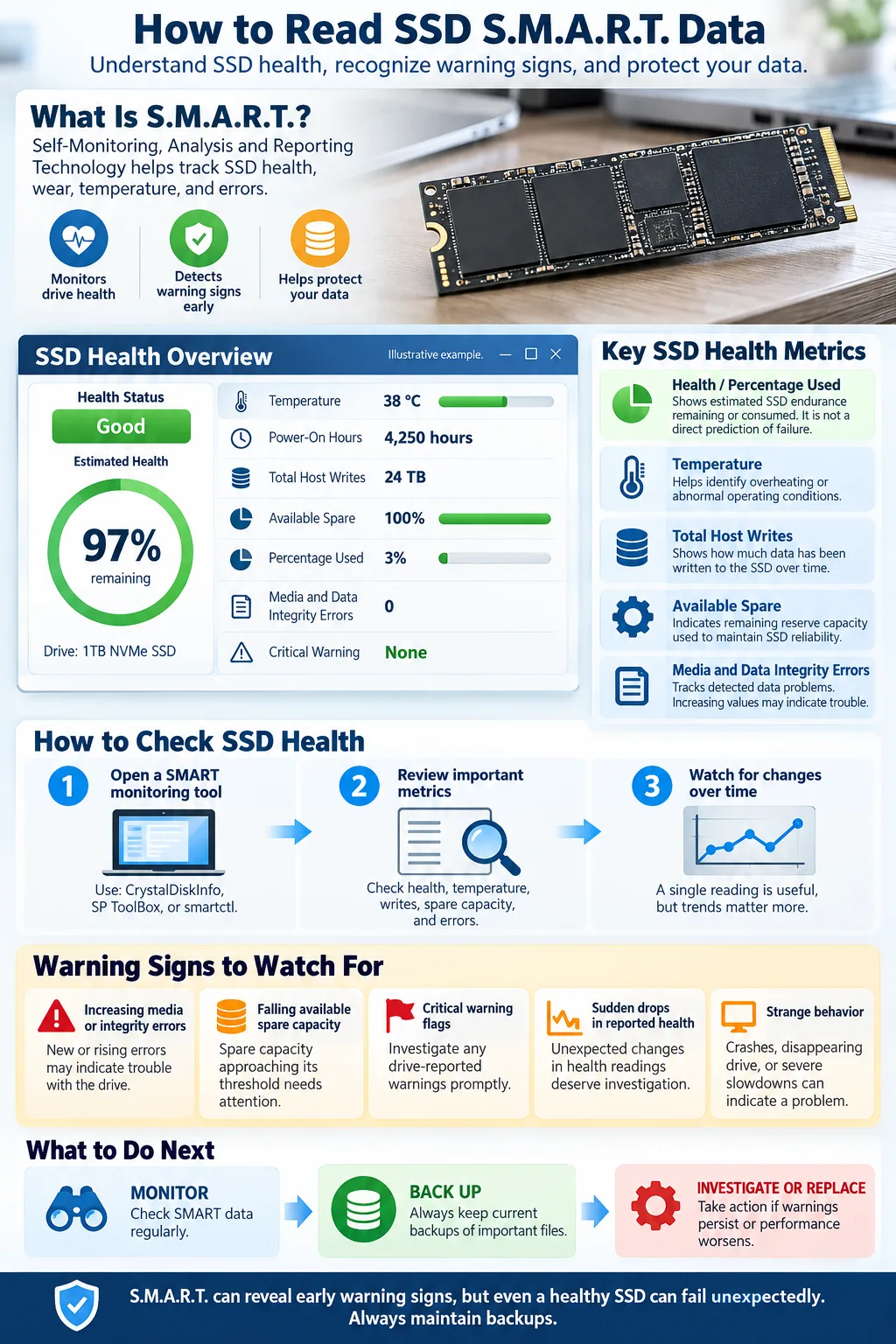
For deeper insights, user-friendly apps like CrystalDiskInfo (for Windows) and SP ToolBox (for Silicon Power SSDs) are excellent. They visualize detailed S.M.A.R.T. data, such as temperature, error counts, and overall health percentage. With a few clicks, you can run diagnostic tests, view attribute histories, and even get alerts if your SSD’s health drops, making them ideal for beginners.
Decoding SMART Data: Key Attributes to Watch
Common and Useful SSD SMART Attributes Explained
SMART attributes are the individual data points tracked by your drive. Common ones include Power-On Hours, Temperature, and Wear Leveling Count. These metrics help you gauge how much your SSD has been used and how it’s holding up under regular operations.
Unique SSD Attributes: Lifetime Percentage and LBAs Written
Two SSD-specific metrics to watch are lifetime percentage and LBAs written. Lifetime percentage shows how much usable life remains (100% is new, 0% is end-of-life). LBAs written (Logical Block Addresses) indicate total data written to the drive, which helps estimate wear since SSDs have a limited write lifespan.
What Reallocated Sector Count Tells You
The reallocated sector count shows how many data blocks have been swapped due to errors. A rising count may signal flash cell wear or drive degradation. While a few reallocations are okay, a rapidly increasing number could be a warning sign of looming failures, so it’s important to monitor this attribute regularly.
Interpreting Your SSD Health Percentage
What Is a Good SSD Health Percentage?
Your SSD health percentage is a quick indicator of overall drive condition. A healthy drive usually reports 95–100%. Backblaze, a major cloud storage provider, considers drives with health percentages above 90% as reliable for daily use. If your SSD drops below 85%, it’s time to plan for a replacement soon.
Signs Your SSD May Be Failing
Watch for drive failure indicators like sudden drops in health percentage, increasing reallocated sectors, or frequent system crashes. If you notice these signs, don’t wait—back up your data immediately and prepare to swap out the drive. Early action can help you avoid the stress of lost files.
How to Test if Your SSD is Working Properly
Running Diagnostics and Benchmark Tests
Besides checking SMART attributes, you can run diagnostics and performance benchmarks to ensure your SSD is working as expected. Most monitoring tools, including CrystalDiskInfo and SP ToolBox, offer built-in tests that check for errors and speed drops. Running these tests monthly can help you spot issues early.
Understanding Performance Metrics
Look at performance metrics like read/write speeds and IOPS (input/output operations per second). If these numbers fall significantly below your SSD’s specs, it might be a sign of impending trouble or excessive wear. Consistent performance means your drive is still in good shape, while drops can indicate problems worth investigating.
Best Practices for Monitoring and Maintaining SSD Health
Regular SMART Data Checks
Make it a habit to check your monitoring tools and review SMART test results every month. This helps you catch gradual declines in drive health before they become emergencies. Many tools can alert you automatically if something changes.
Data Retention and Backup Strategies
Even with healthy data retention, always keep backups of important files. Use cloud services or an external drive, and set up regular backup schedules. SSDs can fail suddenly, so having recent backups ensures your data stays safe no matter what your S.M.A.R.T. readings say.
Common Issues and Weird SMART Data Anomalies
Interpreting Unexpected or Confusing SMART Results
Sometimes, SMART attributes can look odd—values might jump unexpectedly, or show warnings even if your SSD seems fine. Not all anomalies mean disaster; firmware bugs or software quirks can cause false alarms. Compare results across different tools for a clearer picture, and check for firmware updates from your SSD manufacturer.
When to Seek Professional Help
If you see persistent errors, rapid health declines, or can’t interpret strange data, it’s wise to consult a professional. They can run advanced diagnostics and help you recover data if needed. Don’t ignore red flags—prompt action often saves time, money, and your precious files.
With regular S.M.A.R.T. checks and the right monitoring tools, you can keep your SSD healthy and your data safe. Remember, a little proactive care goes a long way—run tests, watch for warning signs, and always keep backups. If you ever feel unsure about your drive’s health, don’t hesitate to ask for expert help. Your files are worth it!
How do I check S.M.A.R.T. data on my SSD in Windows 10?
You can use the Command Prompt with 'wmic diskdrive get status' or a third-party tool like CrystalDiskInfo for detailed results.
What is a good SSD health percentage to have?
A good SSD health percentage is typically above 90%. Anything lower suggests the drive is wearing out and should be monitored closely.
Which S.M.A.R.T. attributes are most important for SSDs?
Key attributes include reallocated sector count, lifetime percentage, and LBAs written, as these signal wear and potential failure.
Can S.M.A.R.T. data predict all SSD failures?
S.M.A.R.T. data can warn you about many common issues, but some SSDs can still fail without obvious warning signs.
How often should I check my SSD’s S.M.A.R.T. data?
Check your SSD’s S.M.A.R.T. data at least once a month, or more often if you notice system slowdowns or errors.
Is it normal for the reallocated sector count to increase over time?
A small increase is normal as the drive ages, but rapid or frequent jumps can indicate a problem and should be investigated.
What should I do if my SSD shows a warning in CrystalDiskInfo?
Back up your data immediately, monitor the drive for further changes, and consider replacing it if warnings persist.